What is recorded about you
What is recorded about you, who can see it, and how long does it stay?
This page answers all three. It is the page to read before your first tracked day. Nothing here is softened.
Some of it depends on settings your company chose. Where that is true, it says so, and it tells you where to look up your own company’s answer.
1. What is captured
Section titled “1. What is captured”A program on your work computer — the desktop agent — records these, and only these.
| What | In detail |
|---|---|
| Tracked sessions | When tracking started and stopped |
| Idle periods | When there was no keyboard or mouse input for longer than the limit your company set |
| Activity counts | A count of key presses and a count of mouse events in each short period. A number, like 420 — not which keys |
| Applications | The name of the application in front, and how long it was there |
| Window titles | The title bar text of that window. On by default. Your company can switch this off |
| Website domains | The domain only — github.com. Not the page, not the search, not anything after the domain |
| Screenshots | A picture of your screen at a set interval, only if your company switched this on |
| Tracking integrity checks | Whether a mouse jiggler, a repeating key pattern or a changed system clock was detected |
Everything on every screen in this product is built from that list.
2. What is NOT captured
Section titled “2. What is NOT captured”This is not a reassurance. It is a list of things that have no place to be stored, because no such field exists in the product.
- What you type. Keystrokes are counted, never recorded. There is no field in the product that can hold typed text. The anti-cheat check that looks for a repeating key pattern does its work on your own computer and sends an empty result — not the keys.
- The web page you were on. Only the domain is kept. The address is cut at the first
/,?or#before anything is saved. A password or a token inside a link is removed too.https://mail.company.com/inbox/message/4471?q=salaryis stored asmail.company.comand nothing more. - Camera and microphone. The product does not use either.
- Your files. No file is read, copied or uploaded.
- Email, chat or message content. The name of the app and the window title can be recorded. What is inside the message is not.
- Anything outside a tracked session, unless your company runs always-on tracking. Ask which one you have.
3. Who can see it
Section titled “3. Who can see it”| Role | What they can open |
|---|---|
| You | Your own time, your own tasks, your own timesheets, your own day in detail |
| Your manager | Your tracked time, your activity counts, your apps and domains, your day timeline, and screenshots |
| Tenant admin | Everything in the workspace, plus every setting |
| Auditor | Everything in the workspace, read-only. They cannot change a record |
| Platform admin | The workspace itself, not the work inside it. They cannot reach screenshots |
Two things worth knowing, both true of the product as it is built today.
4. How long it is kept
Section titled “4. How long it is kept”Your company sets one number: retention days. The product default is 90. The lowest allowed is 1, the highest 3650.
A job runs every night and permanently deletes everything older than that number of days:
- Screenshots — both the image file and its small preview
- Activity counts
- Application and website records
- Idle periods
- Tracking integrity checks
These are not deleted, and are kept for as long as the workspace exists:
- Your hours, and the sessions they came from
- Your timesheets and their approval history
- The daily totals built from them
- The audit log of configuration changes
- Export files
In one sentence: the detail goes, the hours stay. Six months later nobody can see which window was open on a Tuesday, but your total for that Tuesday is still on record.
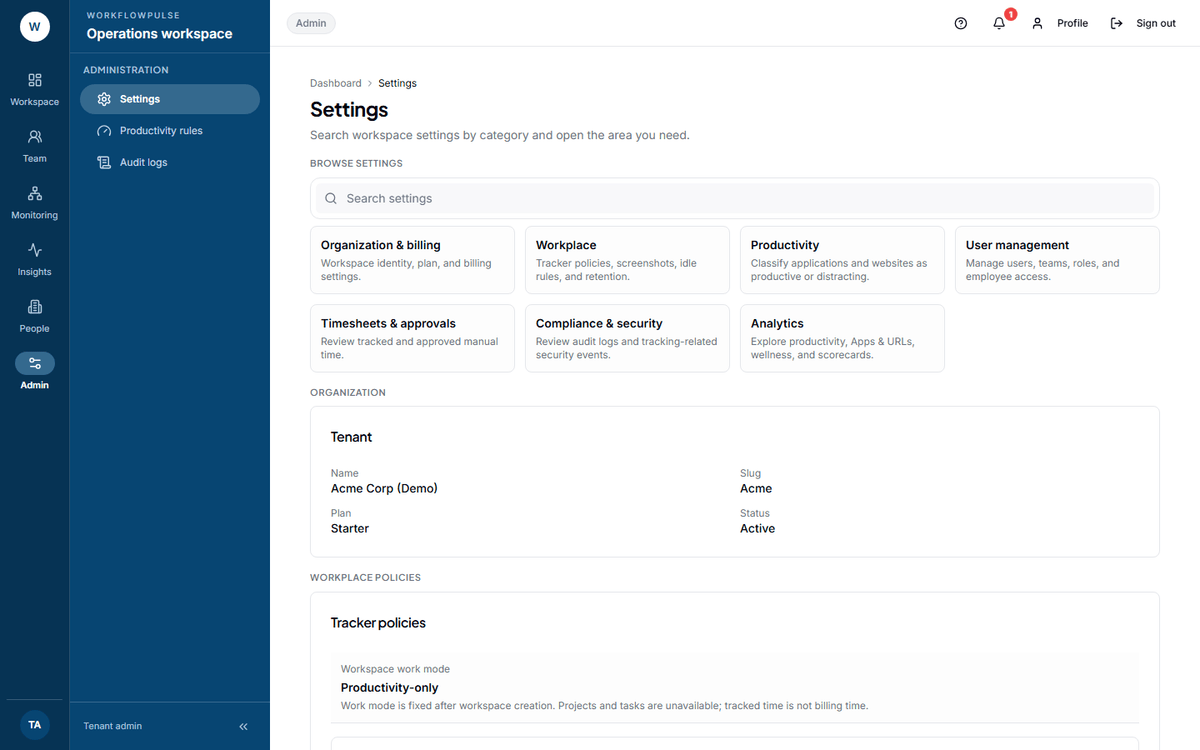 Your company’s three numbers are all on one screen. Data retention (days) is the one that
decides how long your screenshots and activity detail survive.
Look up your own company’s number on Settings → Workplace policies → Data retention (days). If you cannot open that screen, ask your admin. They can read it in five seconds.
5. What you can do about it
Section titled “5. What you can do about it”See your own day. Your dashboard shows today’s tracked time, how much of it was active, and your own activity count. Your timesheet shows each period, and the detail page has a View activity timeline button that opens your day: sessions, applications, idle gaps and your own screenshots.
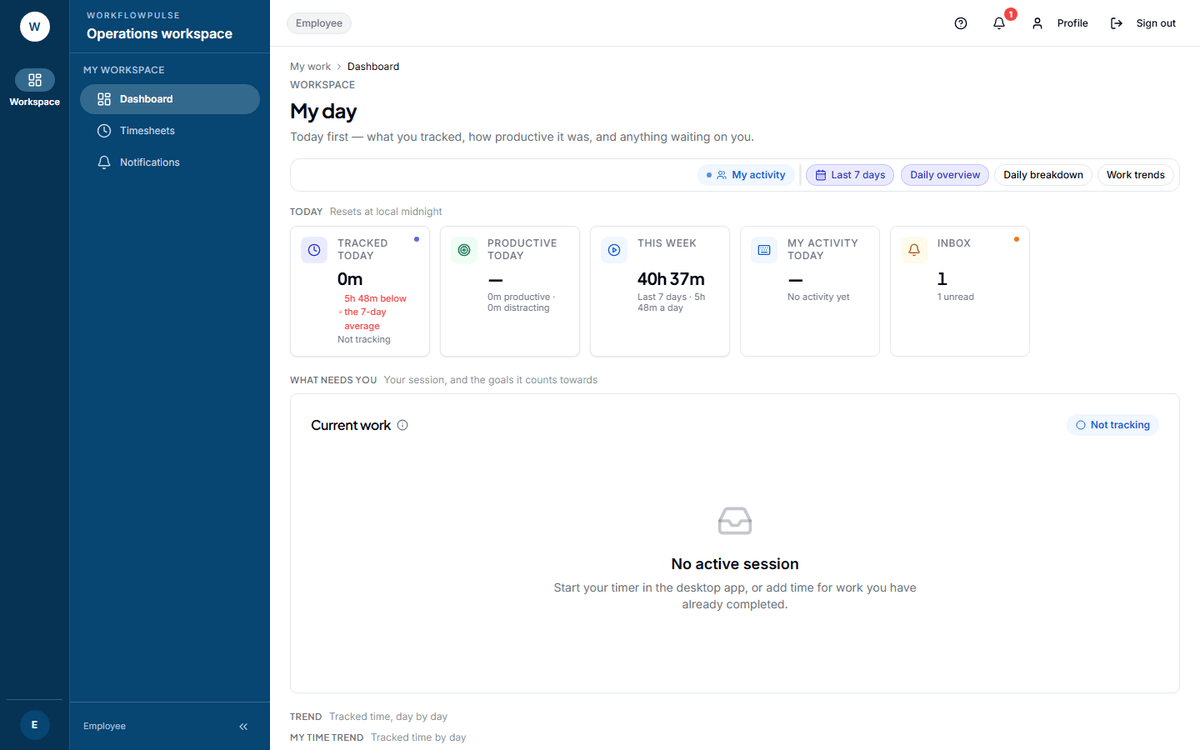 The same figures your manager sees for you, on your own screen first. If one of them looks wrong,
you can say so before anybody else reads it.
Correct a wrong figure. If the tracker missed real work, add it. See Adding time you forgot. A manager approves it, and then it counts.
Ask why a figure says what it says. Why an app was marked distracting, why a block was marked idle, why a timesheet was rejected. Every one of those has a person behind it. See Reporting a problem.
Questions worth asking your admin
Section titled “Questions worth asking your admin”These five have definite answers, and your admin can get all of them from one screen:
- Are screenshots on, and how often?
- Are window titles being kept?
- How many days is data kept?
- Is tracking always on, or only while a task is running?
- Who holds the admin and auditor roles here?
Asking is not a complaint. A rollout where nobody asks is usually a rollout where nobody was told.