Adding time you forgot
How do you add time you forgot to track?
On Manual time (/time/manual). It is in the sidebar under Workspace.
Use it for work away from the computer - a meeting, a client call, a site visit - and for the day the tracker was signed out.
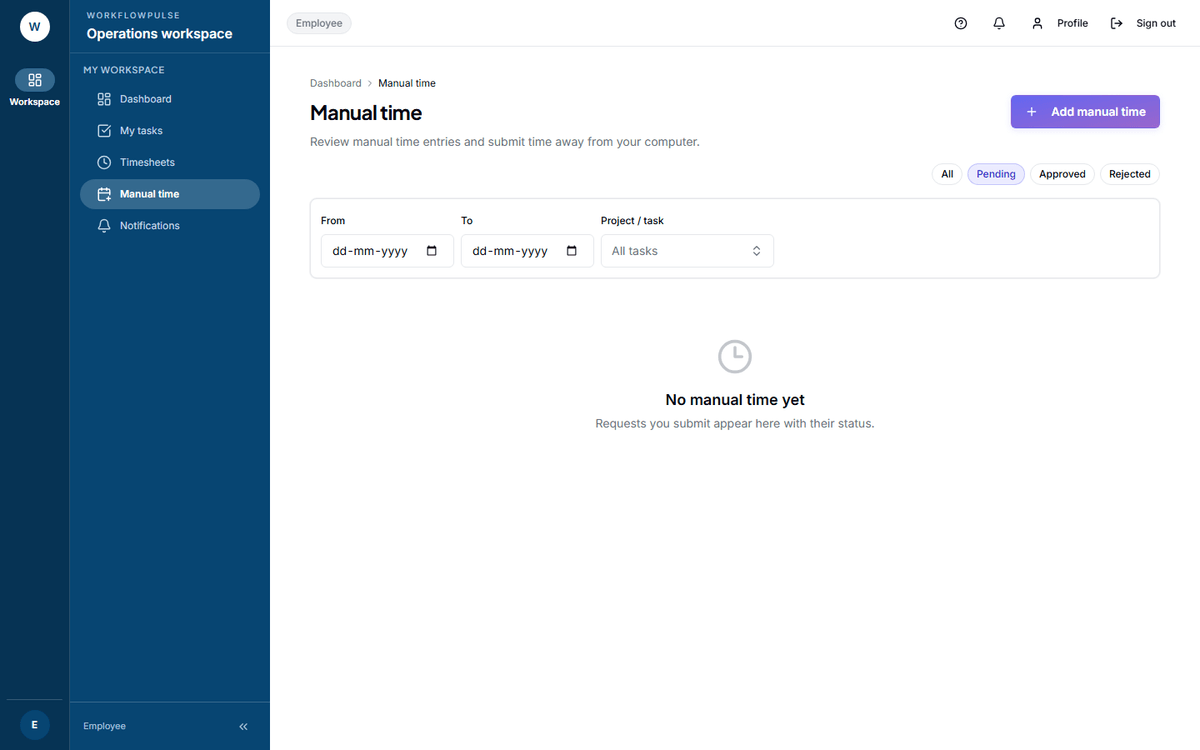 Everything you have sent, with where it got to. Note the chips: the screen opens on Pending, not on everything.
Adding an entry
Section titled “Adding an entry”-
Press Add manual time. A dialog opens over the list.
-
Fill in the five fields below.
-
Press Send for approval. A line confirms it: “Sent. You’ll get a notification when it’s reviewed.”
-
The dialog stays open, so you can add another. Close it when you are done.
| Field | What to put |
|---|---|
| Date | The day it happened. A future date cannot be picked |
| From and To | The real start and end time |
| Task (optional) | The task it belongs to. Only shown in a workspace that uses tasks |
| Counts as | Productive, Neutral or Distracting |
| What was it for? | Required. One plain sentence |
Writing a reason that gets approved
Section titled “Writing a reason that gets approved”The reason is the only thing a reviewer has. Make it answer “what work was this”.
| Good | Client call with Northwind about the March invoice query. |
| Good | Laptop was replaced on Tuesday morning; tracker was not installed until 11:30. |
| Weak | Meeting. |
| Weak | Forgot to track. |
A request that comes back rejected is almost always a request with no usable reason.
The four states
Section titled “The four states”| Status | Meaning |
|---|---|
| Pending | Waiting for a manager |
| Approved | It counts. It is now in your timesheet |
| Rejected | It does not count. The reason is on the row |
| Cancelled | Withdrawn |
Filter with the chips above the table. Narrow by date with From and To, or by task with the Project / task picker.
If the button is missing
Section titled “If the button is missing”Your workspace has manual time switched off. You see a notice instead:
Manual time is disabled. Existing requests remain visible for history and review. A workspace administrator can enable new entries in Settings.
Your old requests stay visible. You cannot create a new one until an admin switches it back on.
This is normal in a workspace that counts time by tracking only, rather than by task.
How to tell whether it counted
Section titled “How to tell whether it counted”Approved manual time appears in your timesheet in the Tracked / manual column, as the second number.
Next: Your timesheet · Approving added time