Productivity roles
What is a productivity role, and how do you change one?
It is a list that says which applications and websites count as productive, neutral or non-productive — for one kind of job.
Open Productivity rules (/settings/productivity) → Roles and applications.
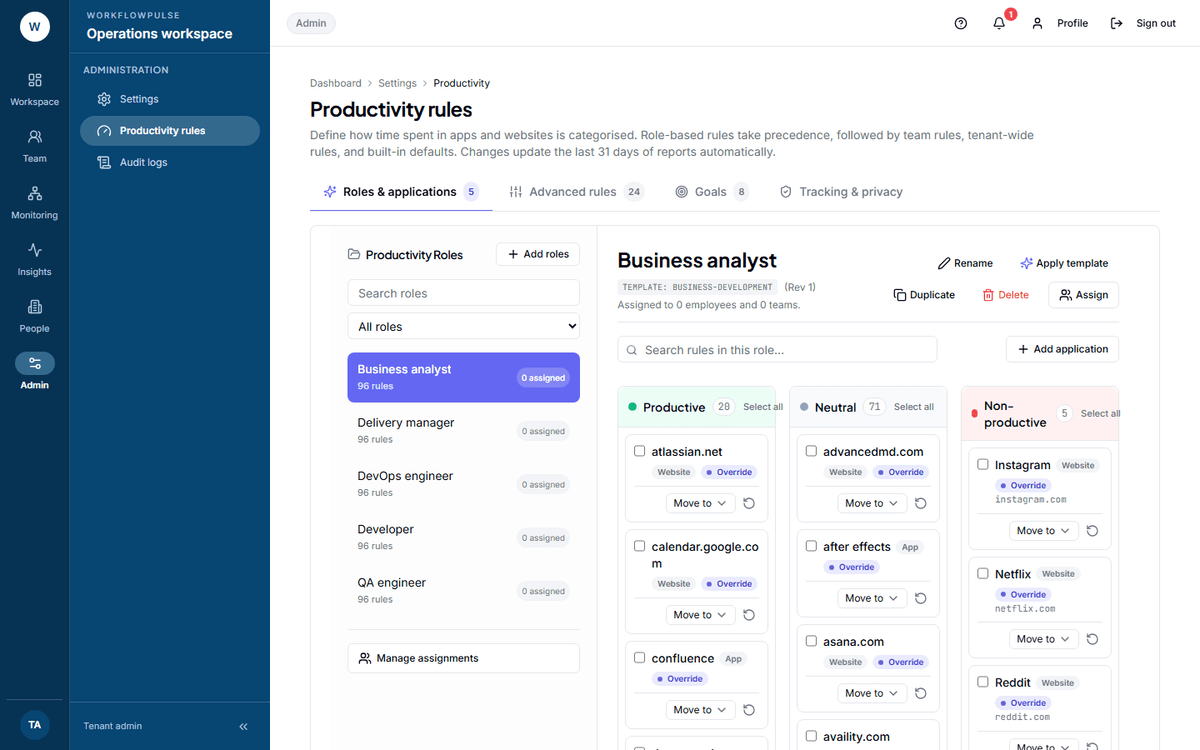 The board is the whole feature. A card’s column is its category, and a badge on each card says whether this role set it or whether it is inherited from somewhere wider.
Why one list for everybody fails
Section titled “Why one list for everybody fails”LinkedIn is work for a recruiter and a distraction for a developer. Instagram is work in a creative studio and a distraction in a bank. Figma is work for a designer and noise for an accountant.
A single company-wide list gets one of those two groups wrong, and the first report they read tells them so. That is how a rollout loses the room in week one.
Making one
Section titled “Making one”Press Add roles. You get the starter templates — ready-made lists for common jobs — and the option to create an empty custom role. Tick the ones you need, rename them to your own job titles, and create.
Four roles usually cover a company. Twelve is a list nobody maintains.
The board
Section titled “The board”Select a role and you get four columns: Productive, Neutral, Non-productive, and Unclassified when anything is waiting.
Drag a card between columns, or use its Move to menu. Select several with the checkboxes and move them together.
Card badges tell you where a rule came from:
| Badge | Meaning |
|---|---|
| Override | This role sets it explicitly |
| Inherited fallback | It comes from a wider rule or a built-in default |
| Unclassified | No rule matches. It counts towards nothing |
Dropping a card into Unclassified resets it to whatever it would inherit.
Saving, and what saving does
Section titled “Saving, and what saving does”Changes are a draft until you press Save changes. A role with unsaved edits shows an amber dot in the list on the left.
When you save, the product recalculates the last 31 days of reports in the background. A fix repairs the recent past, not just tomorrow.
Two messages are worth recognising:
Assigning people
Section titled “Assigning people”Press Assign. Two tabs: Teams and Employees. Bulk-select and Apply to selected handles a group at once.
The order of precedence is worth memorising:
-
A role set directly on a person.
-
The role set on their team.
-
The built-in defaults.
An employee set to “Inherit from team” follows their team. A team set to “None (Built-in fallback)” falls through to the defaults.
The dialog warns you: “Assignments update the last 31 days of productivity reports within a few minutes.”
The other actions
Section titled “The other actions”| Action | What it does |
|---|---|
| Rename | A draft until you save |
| Apply template | Replaces or merges with a starter template |
| Duplicate | Copies the rules. Not the people or teams |
| Delete | Blocked while anybody is assigned. Reassign them first |
| Copy to role | Copies classifications across. Unclassified items are refused |
Duplicate is the one that catches people: the new role has every rule and nobody in it, and will stay empty and silent until you assign somebody.
Two limits
Section titled “Two limits”Only a tenant admin can edit. Managers and auditors can read the board and use the tester, and nothing more. They see “Only tenant admins can add new rules.”
What to check after you build one
Section titled “What to check after you build one”Open App and website use and read the Uncategorized tile. That figure is the only honest measure of whether your roles are doing their job.
Next: How something gets called productive · Alerts and goals