Your timesheet
Where are your hours?
On My timesheets. In the sidebar, under Workspace, open Timesheets. It takes you straight to your own.
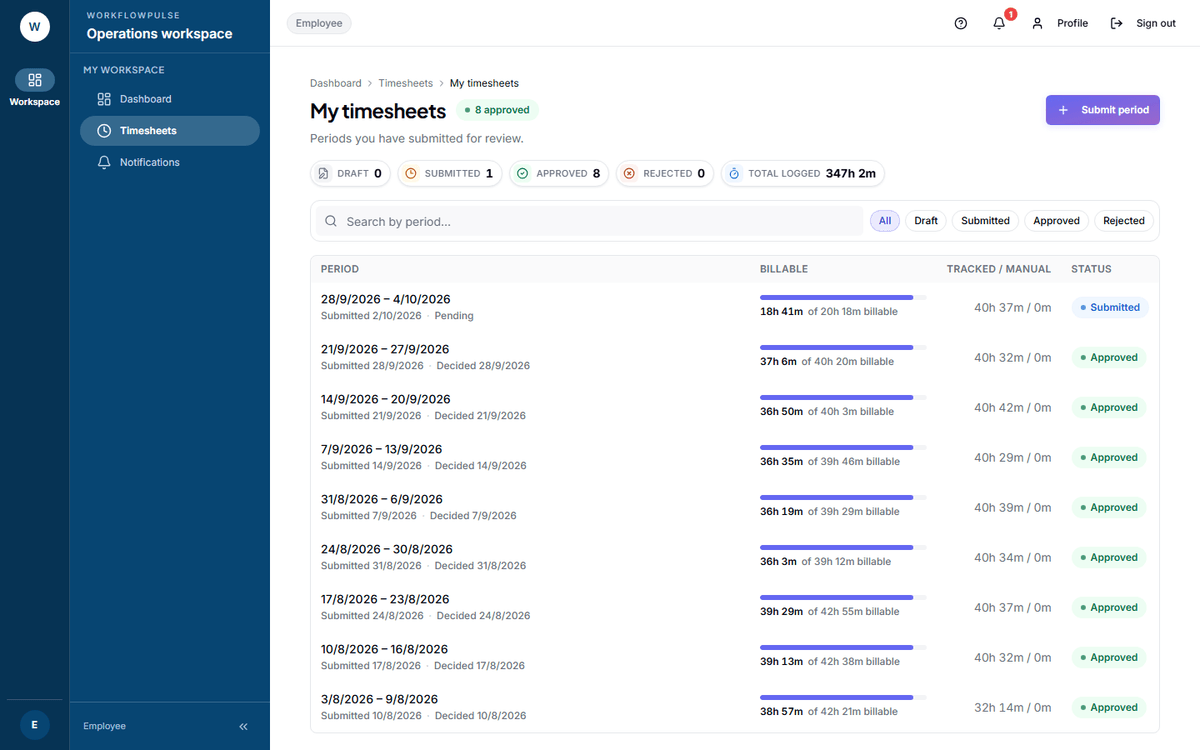 One row per period you have sent for review. The tiles are not decoration: each one is a filter, so Rejected 1 takes you straight to the period that needs you.
What is on the screen
Section titled “What is on the screen”Five tiles across the top. Click any of the first four to filter the list under it.
| Tile | The hint under it |
|---|---|
| Draft | Not yet submitted |
| Submitted | Awaiting your manager’s decision |
| Approved | Decided and closed |
| Rejected | Sent back for correction |
| Total logged | Across every period below |
The table has four columns.
| Column | What it means |
|---|---|
| Period | The dates it covers. Click it to open. Under it: when you submitted, and when it was decided |
| Billable | A bar, and how much of the total can be charged to a client |
| Tracked / manual | Time the tracker recorded, then time you added by hand |
| Status | Draft, Submitted, Approved or Rejected |
Submitting a period
Section titled “Submitting a period”-
Press Submit period, top right.
-
Check the dates. The form offers the last complete Monday-to-Sunday week.
-
Write one line in Notes for reviewer. It is optional, and it is the part that saves you a rejection.
-
Press Submit for review. You land on the timesheet itself.
What to put in the note. Anything about the week that a reviewer cannot see in the numbers:
Tuesday was a public holiday.Thursday on the client site, tracker not installed on their laptop.Low hours - half day Friday, agreed with you on the 3rd.
The four states
Section titled “The four states”| Status | What it means | What you do |
|---|---|---|
| Draft | Started, not sent | Submit it |
| Submitted | With your manager | Wait. You get a notification |
| Approved | Decided and closed | Nothing |
| Rejected | Sent back | Read the reason, fix it, submit again |
When one is rejected
Section titled “When one is rejected”Open it. The detail page carries a Rejection details card: who decided, when, and the note they left. Above it a line reads “Your timesheet was rejected. Make any needed corrections to your tracked time, then submit the period again.”
-
Read the note. It is the only thing you have.
-
Fix what it names. A missing manual-time request is the usual cause.
-
Submit the same dates again.
If the reason is not clear, ask the person named on the card. A rejection with no usable note is a problem with the review, not with you.
Seeing what is behind a number
Section titled “Seeing what is behind a number”Open any timesheet and press View activity timeline.
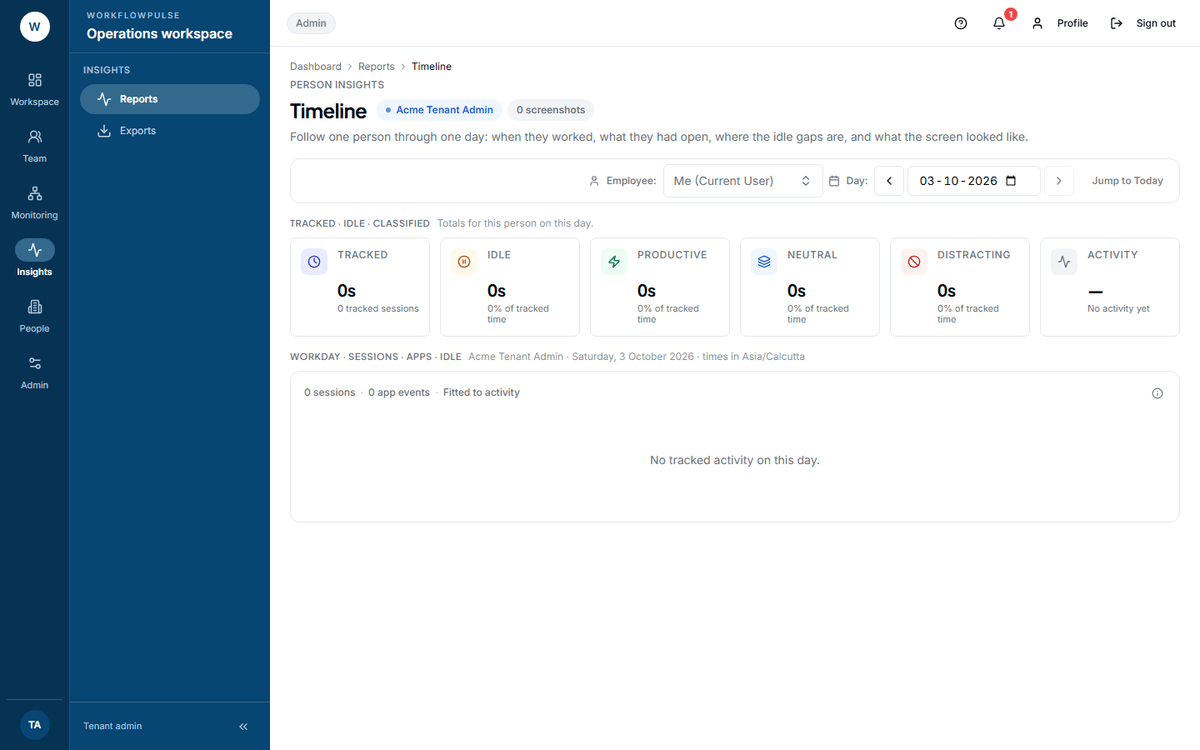 The same screen your manager opens. Your own day, hour by hour: every session, every application, every idle gap, and every screenshot taken that day. If a total looks wrong, this is where you find out why.