Your tasks
What are you meant to be working on today?
Open My tasks (/tasks/mine) in the sidebar under Workspace. It lists work assigned to you, and nothing else.
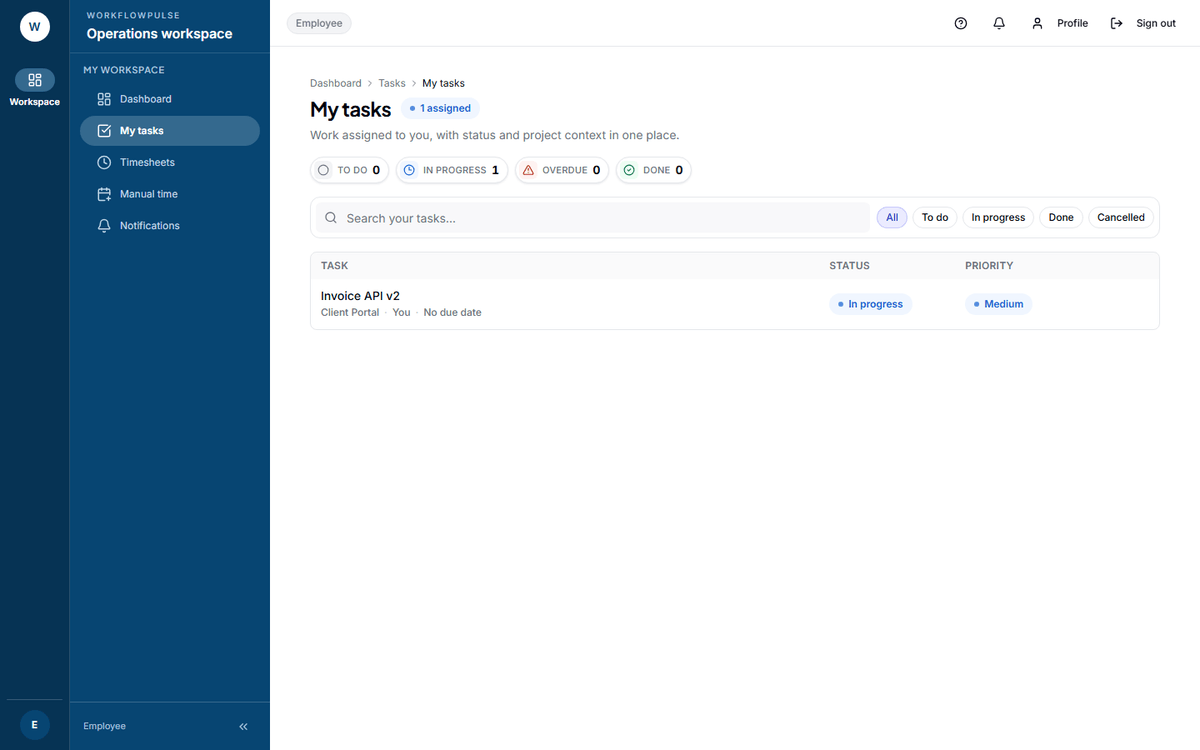 Your own list, not the team board. The badge beside the title counts everything assigned to you; the four tiles split it by state.
The screen exists only in a workspace that uses tasks. If your company counts time without tasks, there is no My tasks item in your sidebar, and nothing is missing.
Reading the screen
Section titled “Reading the screen”Four figures across the top.
| Tile | What it counts |
|---|---|
| To do | Not started yet |
| In progress | Currently being worked |
| Overdue | Past due date and not done |
| Done | Completed work |
The table below has three columns of information, plus the actions at the end of each row.
| Column | What it holds |
|---|---|
| Task | The title, and under it the project, “You”, and the due date |
| Status | To do, In progress, Done or Cancelled |
| Priority | Low, Medium, High or Urgent |
Click a task title to open it. The detail page shows the full description.
Search by title with the box above the table, and filter by status with the chips. A long project name is shortened on the row - hover it to read the whole name.
Two things this screen cannot do
Section titled “Two things this screen cannot do”Both are worth saying plainly, because people look for them and assume they have missed a setting.
Neither is a setting you have failed to find. The product does not have them yet.
If a task is missing
Section titled “If a task is missing”A task you expect to see is not there for one of three reasons.
- It is not assigned to you. Ask your manager to assign it.
- It is marked Done or Cancelled. Switch the status filter to All.
- The project it belongs to is on hold or archived.
If you have no tasks at all
Section titled “If you have no tasks at all”The screen says so: “You don’t have any active tasks. A manager will assign you work soon.”
Next: Tracking your time · Projects and tasks