Who needs you today
Who needs you today?
Your dashboard answers it. Open /dashboard and read it in this order. The screen is built that way - its own section heading says “Approvals first, then who is on the clock”.
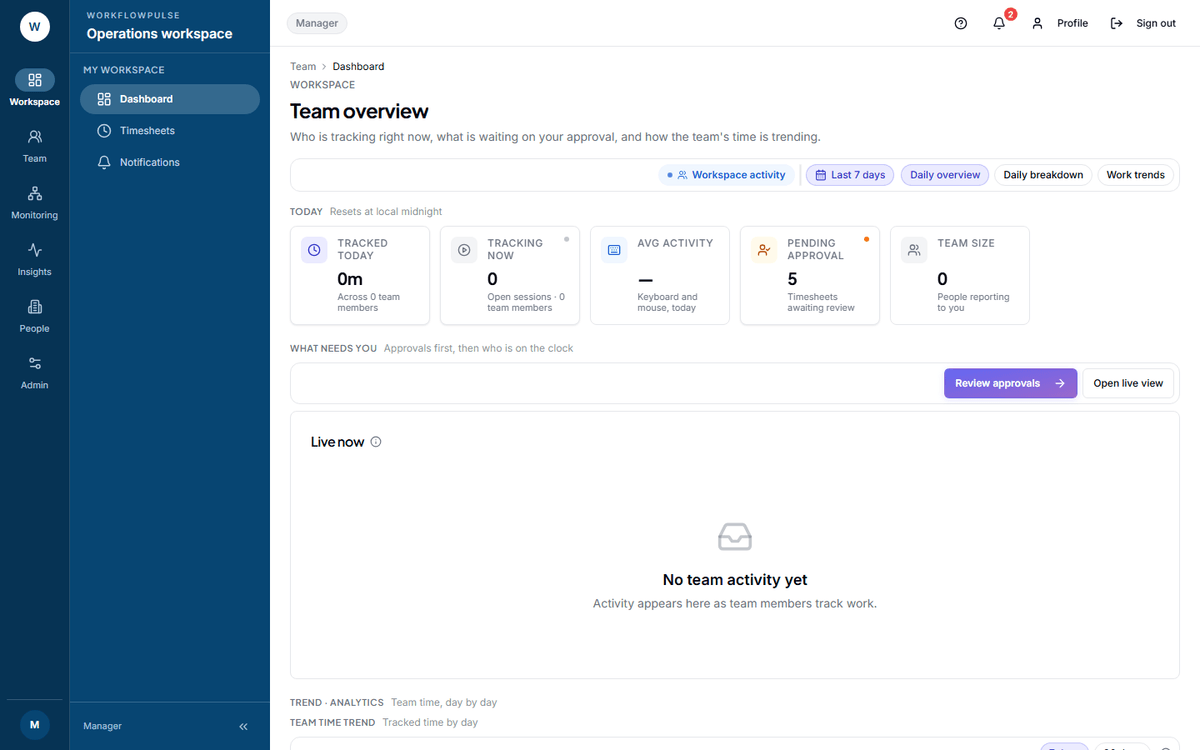 The whole triage is on one screen. The tiles say whether today is normal; the table underneath says who to open.
The order of attention
Section titled “The order of attention”-
Pending approval. Anything above zero is work waiting on you. Read the next section before you click it - the number and the link are not the same queue.
-
Tracking now against Team size. Three of eleven at 11:00 is a question. Eleven of eleven is a day you can leave alone.
-
The Live now table. One row per person: tracked time, an activity bar, and Tracking or Idle. Under each name, idle time and a productive percentage.
-
One name. Click it and you get that person’s whole day - sessions, applications, idle gaps, screenshots.
| Tile | What to do with it |
|---|---|
| Tracked today | The workspace total so far |
| Tracking now | Open sessions right now. Clicking it opens the Live screen |
| Avg activity | Keyboard and mouse across everybody today |
| Pending approval | Submitted timesheets. See the warning below |
| Team size | The count behind every figure above. See the warning below |
| Billable today | Only in a workspace that bills |
Two buttons sit above the table: Review approvals and Open live view.
Two figures that are not what the label says
Section titled “Two figures that are not what the label says”A person who is not tracking at all
Section titled “A person who is not tracking at all”That is the urgent one, and it is the one the dashboard hides. Someone whose tracker stopped produces no hours, and nobody finds out until a timesheet comes in short.
Signs:
- Their name is missing from the Live now table, not showing zero.
- Missing from Live during their working hours.
- No row in the activity report for today.
Ask them before you assume anything. The usual causes are a password change that signed the desktop app out, a new laptop, and a bad network.
Reading an idle figure properly
Section titled “Reading an idle figure properly”Idle means no keyboard and no mouse for longer than the limit - three minutes by default. A long meeting, a phone call, reading a contract and a design argument at a whiteboard all produce the same block.
The card further down the page
Section titled “The card further down the page”Scroll past the tiles to What needs attention first. It reads the same reports you would open and writes up to five findings in plain words, each with the rows behind it one click away.
It is the fastest weekly check in the product. How the team is doing goes through what it fires on.
Your own screens are empty, and that is correct
Section titled “Your own screens are empty, and that is correct”You have a manager role, so you are not tracked. Your personal screens have nothing in them. Nothing is broken - your screens are the team screens.
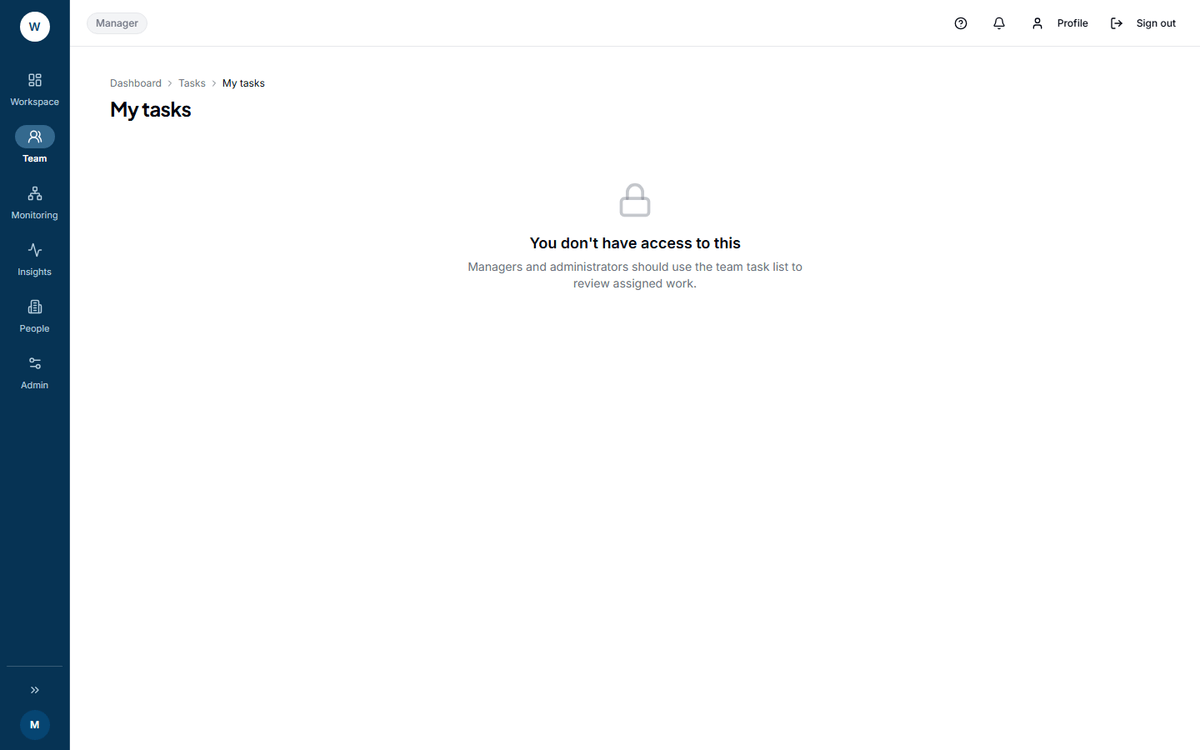 The three personal screens behave differently, and this one surprises people. My tasks does not show an empty list - it refuses, and points you at the team list.
| Your screen | What you get |
|---|---|
| My tasks | Refused: “Managers and administrators should use the team task list to review assigned work” |
| My timesheets | An empty list. “No timesheets submitted yet” |
| Manual time, on the Me tab | An empty list. Switch to My team to see your people’s requests |