Inviting your people
How do you get people into the workspace?
Invite them on Users (/users). Tenant admin only — the screen refuses anybody else.
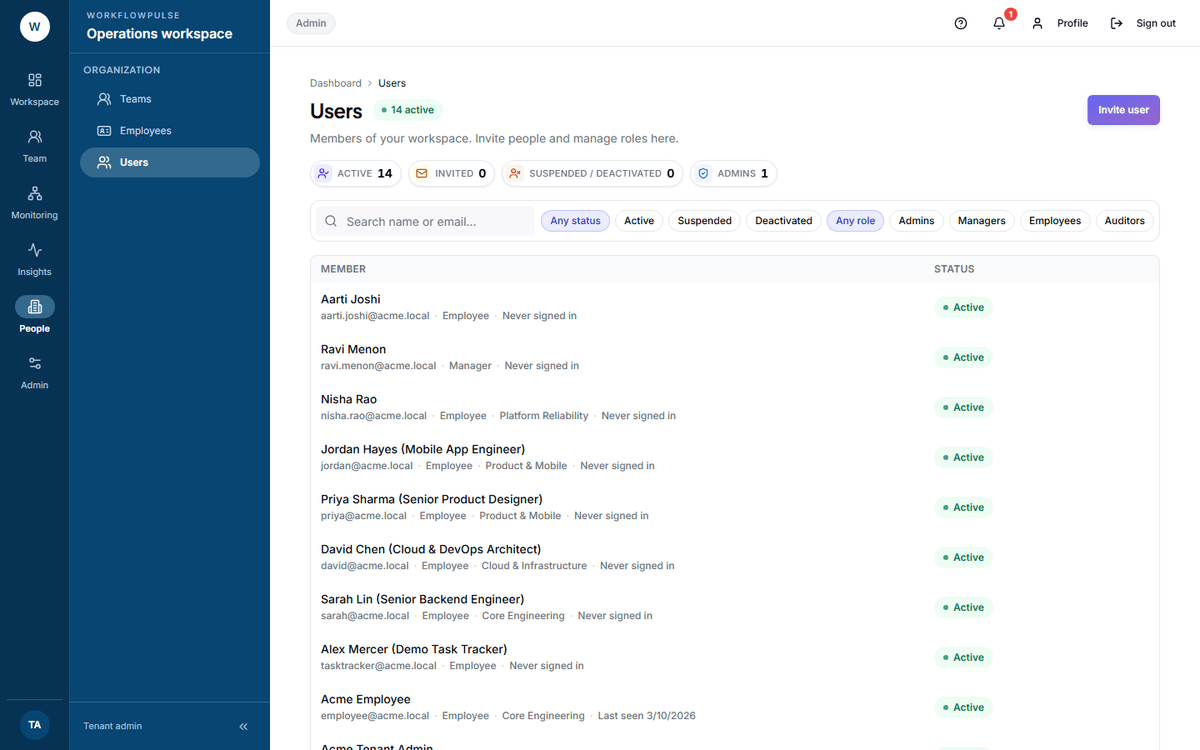 Four figures, and all four are links. Invited is the one to watch in week one — it should be
falling every day.
Sending an invitation
Section titled “Sending an invitation”-
Press Invite user. A dialog opens with three fields.
-
Fill in Full name, Email (a work email) and Role. The role list is searchable, and each role shows its own description under the name.
-
Press Send invitation. A green note confirms the address it went to.
-
The person gets an email with a sign-up link. They set a password and sign in. See Signing in for what they will see.
Until they accept, they sit in the Pending invitations section at the bottom of the screen with an expiry date. Invited the wrong person? Press Revoke invitation there and the seat is free again.
Which role
Section titled “Which role”Pick by what the person needs to see, not by their job title.
| Role | Give it to | They can |
|---|---|---|
| Employee | Anyone being tracked | See their own work only |
| Manager | Anyone who approves time or reviews a team | See team time, approve timesheets and added time, open the live view and screenshots |
| Tenant admin | One or two people, no more | Everything, including every setting |
| Auditor | Compliance, internal audit, an external reviewer | See everything, change nothing |
A person can hold more than one role. Change roles later with Edit roles on their row.
The three steps after the invitation
Section titled “The three steps after the invitation”An accepted invitation is not a working setup. Three more things, and each one is a different screen.
-
HR details — on Employees (
/employees), open the person and fill in the form. Employee code, designation, joining date, hourly rate, team and manager.This is where the reporting line is set, and a manager’s team is built from it. A person with no HR record still appears in lists, marked No HR record, and belongs to nobody.
-
A team — on Teams (
/teams). A team has a name, a manager, and optionally a parent team.Membership comes from each person’s HR record, not from the team screen. So a new team stays empty until you go back to step 1 and point people at it.
-
A productivity role — on Productivity rules (
/settings/productivity) → Assign. This is the rule set that decides which apps count as work for that person.Without one they fall back to the built-in defaults, which are right for nobody in particular. On the defaults a developer in a code review looks idle and a designer in Canva looks distracted.
Checking your own work
Section titled “Checking your own work”Three checks worth doing on day two:
- Invited on Users should be falling. A person stuck on that list has not installed the desktop app either, so nothing at all is being recorded for them.
- Admins should be a number you can name out loud.
- On Employees, the No HR record and No manager figures should both be zero before you judge any team report. A team report built over people with no manager is measuring the wrong group.
When somebody leaves
Section titled “When somebody leaves”Press Deactivate user on their row. They are signed out and blocked. Their recorded time stays, which is what you want for a timesheet that was already approved.
Next: People and roles · Teams