People and roles
Who can see what, and how do you change it?
Roles are set on Users (/users). Tenant admin only — every other role is refused at the door with “Users needs the tenant admin role.”
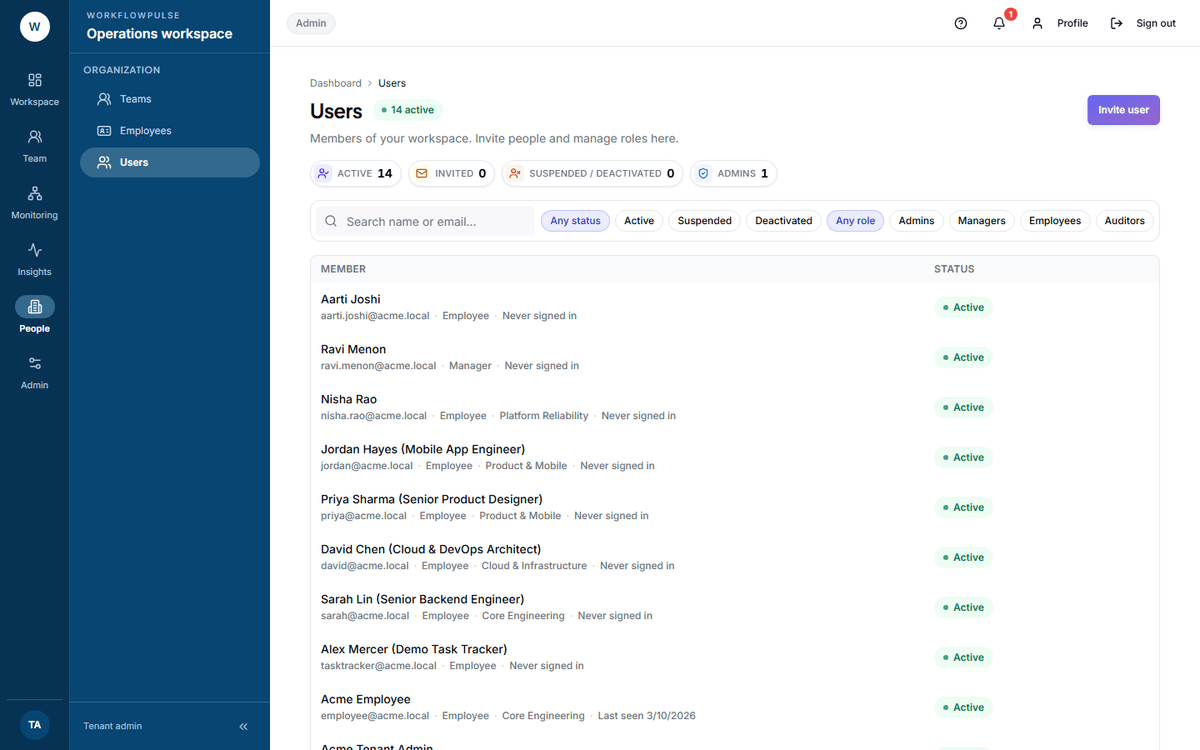 Two lists again. The members table is people who exist; the Pending invitations section underneath is people who were asked and have not arrived. A seat is held by both.
The five roles
Section titled “The five roles”| Role | Scope | The things only it can do |
|---|---|---|
| Employee | Own data | Track time, submit a timesheet, request manual time |
| Manager | Team | Approve timesheets and added time, open the live view, open screenshots |
| Tenant admin | Workspace | Every setting, invite and deactivate people, open monthly client billing |
| Auditor | Workspace, read-only | Read everything, change nothing |
| Platform admin | Across workspaces | Create and suspend workspaces, publish desktop versions. No access to screenshots |
A person can hold more than one. Change them with Edit roles on their row.
The dialog describes each one in a line: “Manage workspace settings, members, and billing”, “Review team work, time, and approvals”, “View reports and audit information”, “Access assigned work and personal activity.”
Three things that are not the same
Section titled “Three things that are not the same”This trips up every new admin.
| Thing | Where | What it decides |
|---|---|---|
| Role | Users | What screens they can open |
| Employee record | Employees | Their manager, team, rate and whether they are billable |
| Productivity role | Productivity rules | Which apps count as work for them |
Four decisions that have a right answer
Section titled “Four decisions that have a right answer”Keep admin small. The admin role changes what is recorded and how long it is kept. Two people is usually right. Four is a lot. The Admins tile counts them for you.
Give an auditor the auditor role. Not an admin login “so they can see everything”. Read-only is enforced on the server and it is the version that survives being questioned.
A manager needs the reporting line set. The manager role on its own gives a person manager screens. Their team comes from the Manager field on each person’s employee record. Set that field or their team screens stay empty.
Deactivate, never delete. There is no delete, on purpose. Deactivating signs them out and blocks them, and keeps every hour they recorded. An approved timesheet has to stay provable.
The row actions
Section titled “The row actions”| Action | What happens |
|---|---|
| View employee profile | Opens their employee record |
| Edit roles | The role checkboxes. Applies on save |
| Reset password | A temporary password appears in the row, as readable text |
| Deactivate user | Signed out and blocked. Their data stays. Disabled once already inactive |
Pending invitations have one action, Revoke invitation, which frees the seat before the invitation expires on its own.
One honest note about permissions
Section titled “One honest note about permissions”The product ships a list of fine-grained permission codes — view own screenshots, view team screenshots, and so on. Those codes are stored but they are not what the product checks. Every screen and every endpoint is gated on the role name.
Next: Teams · Inviting your people