Projects and tasks
How do you organise work so the hours land in the right place?
A project holds the hours. A task is the named piece of work inside it. Both screens exist only in a task-based workspace.
Projects
Section titled “Projects”Open Projects (/projects). The screen says what it is for: “Every project you bill time against. Open a row to manage members and rates.”
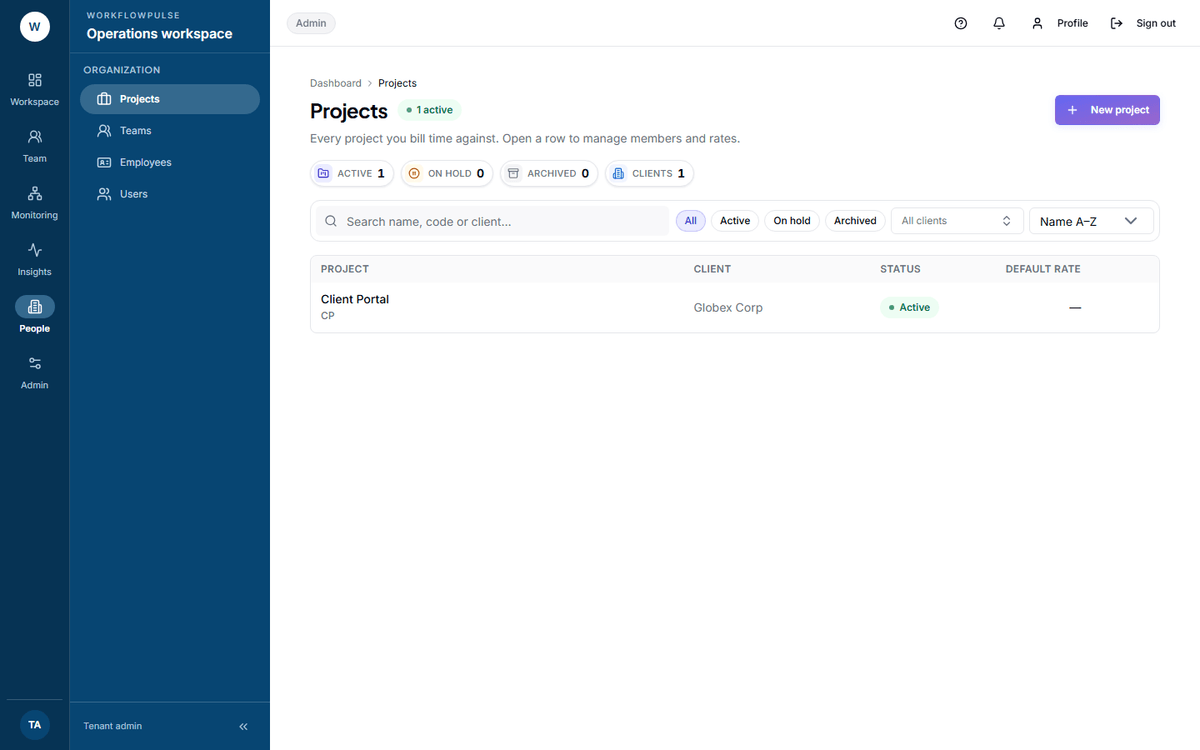 The Clients tile is the one to watch. It counts distinct client names, so a project saved without one quietly lands in “Unassigned client” on every money report.
Press New project.
| Field | Required | Why it matters |
|---|---|---|
| Name | Yes | What people pick from a list. The only required field |
| Code | No | Your own reference |
| Client | No | Billing groups by this. A blank one shows as “Unassigned client” on every money report |
| Default hourly rate (USD) | No | The rate used when a person has no rate of their own |
| Project owner | No | Who is accountable |
| Description | No | Context for whoever opens it next |
Everything on this form can be changed later. Open the project and press Edit on the Details card.
Members and rates
Section titled “Members and rates”Open a project and use the Members card. Add a person, and they can book time to it.
Each member row has an Override rate and a Billable switch. The override wins over the project default, which wins over the person’s own rate.
A member is always added as a plain member. The row can show a role, but nothing in the product sets one - there is no way to mark somebody the lead on a project.
Status
Section titled “Status”Active, On hold or Archived. Archiving keeps the hours and takes the project out of the pickers. It asks first: “Archive this project?”
Open Tasks (/tasks). Press New task.
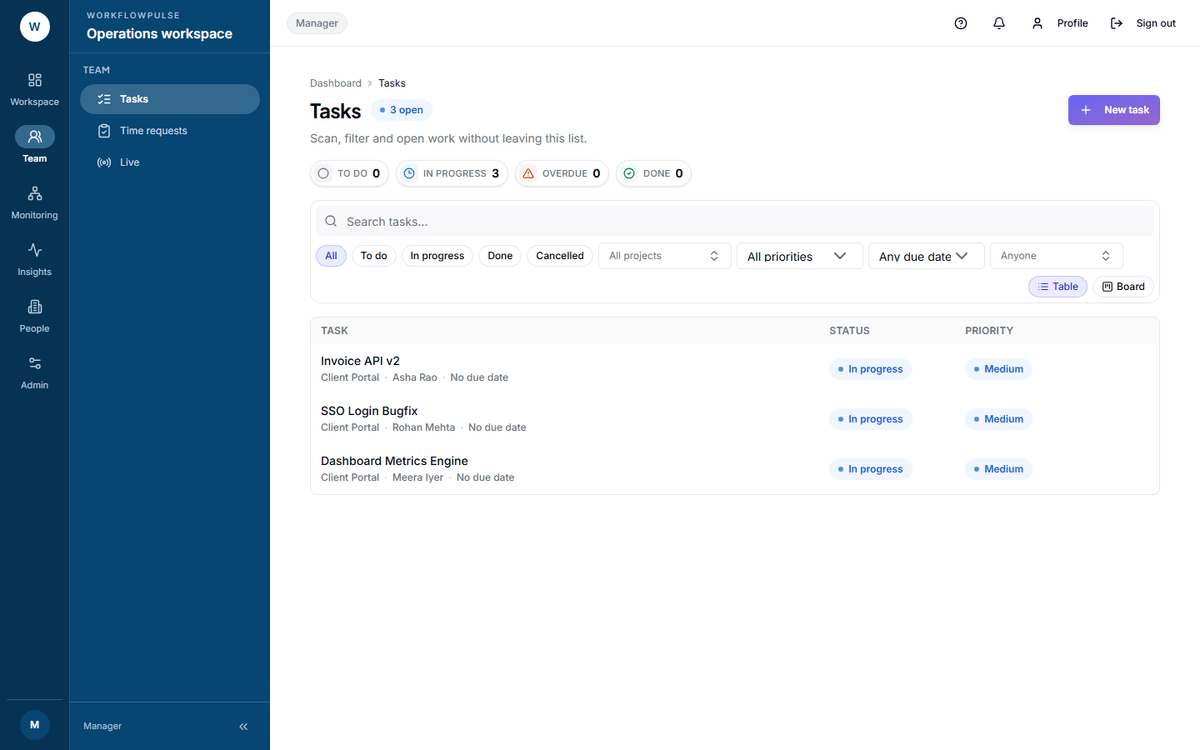 Switch to Board with the chip on the right. Each card there carries a status picker, so moving a week’s work forward is quickest in that view.
A task needs a project and a title. It can also carry a description, a status, a priority, a due date, an estimate in minutes, an assignee, and a billable flag that starts on.
Filter by project, priority, due date and assignee. Overdue means past the due date and not done.
Five things to know before you rely on these screens
Section titled “Five things to know before you rely on these screens”Setting up so the billing is right
Section titled “Setting up so the billing is right”-
One project per client engagement, with the client name filled in.
-
Rates set before anybody tracks. A rate added later does not reprice hours already recorded.
-
The billable switch right on each member before the first week, not after the first invoice.
-
Check the result on Project summary at the end of week one, while it is still cheap to fix.
Next: Billing reports · Project summary