Apps and websites
How does something get called productive?
Four layers, checked in order. The first one that matches wins.
| Order | Layer | Set on |
|---|---|---|
| 1 | The person’s productivity role | Productivity rules → Roles and applications |
| 2 | A rule aimed at their team | Productivity rules → Advanced rules |
| 3 | A rule aimed at everybody | Productivity rules → Advanced rules |
| 4 | The built-in defaults | Shipped with the product |
Nothing matched means unclassified. Unclassified time is counted as tracked and scored as nothing — it is in the total and out of the percentage.
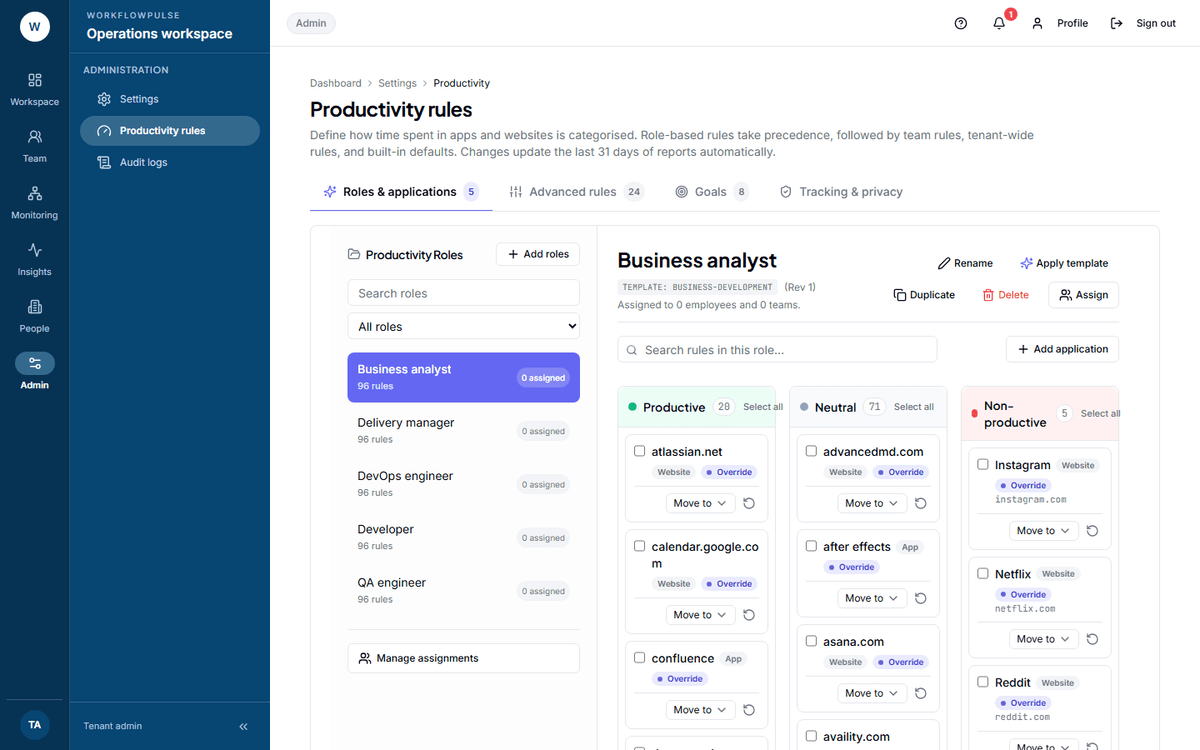 The tester in the middle of this tab is the part worth learning. It answers which of the four layers decided a category, which is the question behind most arguments about a number.
The built-in defaults
Section titled “The built-in defaults”Thirty-one website rules ship with the product. Development and document tools are productive, search and reference are neutral, streaming and social are distracting. The empty state names three of them: “IDEs and Office are productive, GitHub is productive, YouTube is distracting.”
They are a starting point, not a policy. They know nothing about your industry.
Testing before you trust
Section titled “Testing before you trust”Advanced rules → Check how something is categorised.
-
Type an App name — it starts filled in with
chrome. -
Add a Website (optional) if you are testing a domain, for example
github.com. -
Pick a Productivity role, or leave it on None (Legacy fallback).
-
Pick a team under As a member of, or leave it on Everyone.
-
Press Check.
The answer names the category and the layer that decided it: productivity role, team rule, permission role rule, everyone rule, or built-in default. With no match at all it says “Uncategorized: no rule matches.”
Managers can use the tester too. Only a tenant admin can change what it reports.
Finding what is missing
Section titled “Finding what is missing”Open App and website use and read the Uncategorized tile.
The summary table on that report lists the top applications by time. Work down it. Each one you classify repairs the last 31 days as well as the future.
Adding something
Section titled “Adding something”Open the role on Roles and applications and press Add application.
Browse the library, or add a custom website domain or application name. Then drag it to the right column and Save changes.
This is the layer to reach for first. It fixes the people who have the problem and leaves everybody else alone.
Advanced rules → Add an advanced rule.
- Type — Website or App
- Website or App name contains — the pattern, e.g.
jira.acme.comorexcel - Category — Productive, Neutral or Distracting
- Applies to — Everyone, a team, or a role
Press Add rule. There is no edit on an existing rule — the only row action is delete.
How patterns match:
- Websites match on the domain.
github.comalso coversapi.github.com. - Applications match on the app name containing your text.
excelcovers Microsoft Excel.
A short pattern is a wide net. office will catch more than you meant.
Three rules of thumb
Section titled “Three rules of thumb”Neutral is a real answer. Search, email and calendars are usually neutral. Marking them productive flatters every number you have.
Review after a month, once. New tools arrive. Check the unclassified figure again and stop there. A rule set that is edited weekly is a rule set nobody trusts.
What it cannot do
Section titled “What it cannot do”There is no edit on a rule. Delete and recreate.
No rule can be scheduled or dated. A change applies to the last 31 days and to everything after it. You cannot say “productive from Monday”.
A role carries at most 500 rules. See Productivity roles.
Window titles are not matched. Rules see the application name and the domain, not what was open inside them.