What can your manager actually see about you?
Here is the whole answer in one place. The rest of the page goes screen by screen and shows you each one.
They can see
Your name, and whether you are Active or Idle right now
The task you picked, or “No task selected”
The application in front, or the website domain
The window title , when one is being recorded
Keyboard and mouse counts , as an activity percentage
Every idle gap , and how long it lasted
Screenshots taken at a set interval, and on requestYour hours, day by day, and how they rank against the team
They cannot see
What you type. Key presses are counted. There is no field anywhere that could hold typed textWhich page you were on. Only the domain. github.com, never the repository, the issue or the searchYour files. None are read or copiedYour screen, live. There is no live screen view in this productYour messages. The app name and window title can be recorded. What is inside is notAnything after the retention period. It is deleted permanently On the Live screen your manager sees a tile for you while you are tracking. The screen refreshes every few seconds.
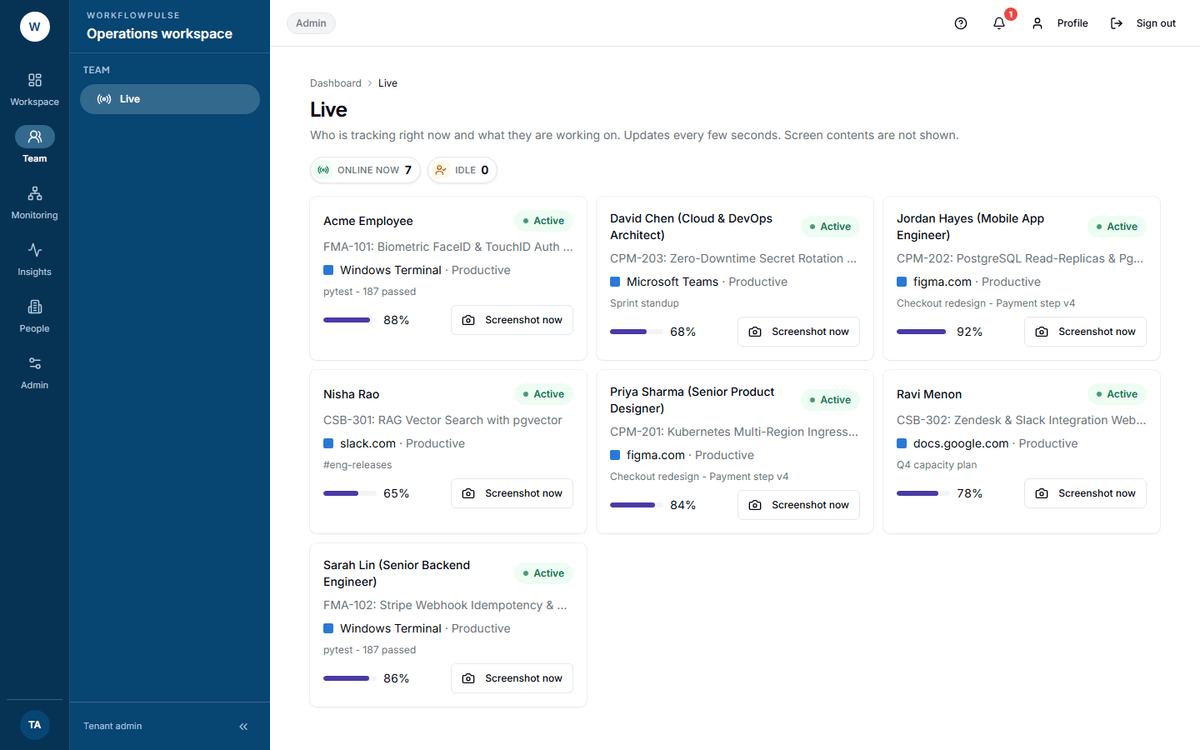
The page says it in its own description: “Who is tracking right now and what they are working on. Updates every few seconds. Screen contents are not shown.”
The live view is text . It is not a view of your screen. Everything on the tile is in the list above - a name, a state, an app, a title, a number.
A manager or an admin can press Screenshot now on your tile. Three things to know:
There is no warning on your machine . The desktop app takes the picture on its next check-in.
The button then locks for two minutes , so it cannot be used as a stream.
The request is written to the audit log with the name of the person who asked . That record outlives the picture.
An auditor cannot press it. They see a line instead: “Only managers and admins can request an on-demand screenshot.”
On their dashboard, a Live now table: your name, time tracked today, an activity bar, and whether you are tracking or idle. Under your name, idle time and a productive percentage.
Your name is a link. It opens your day.
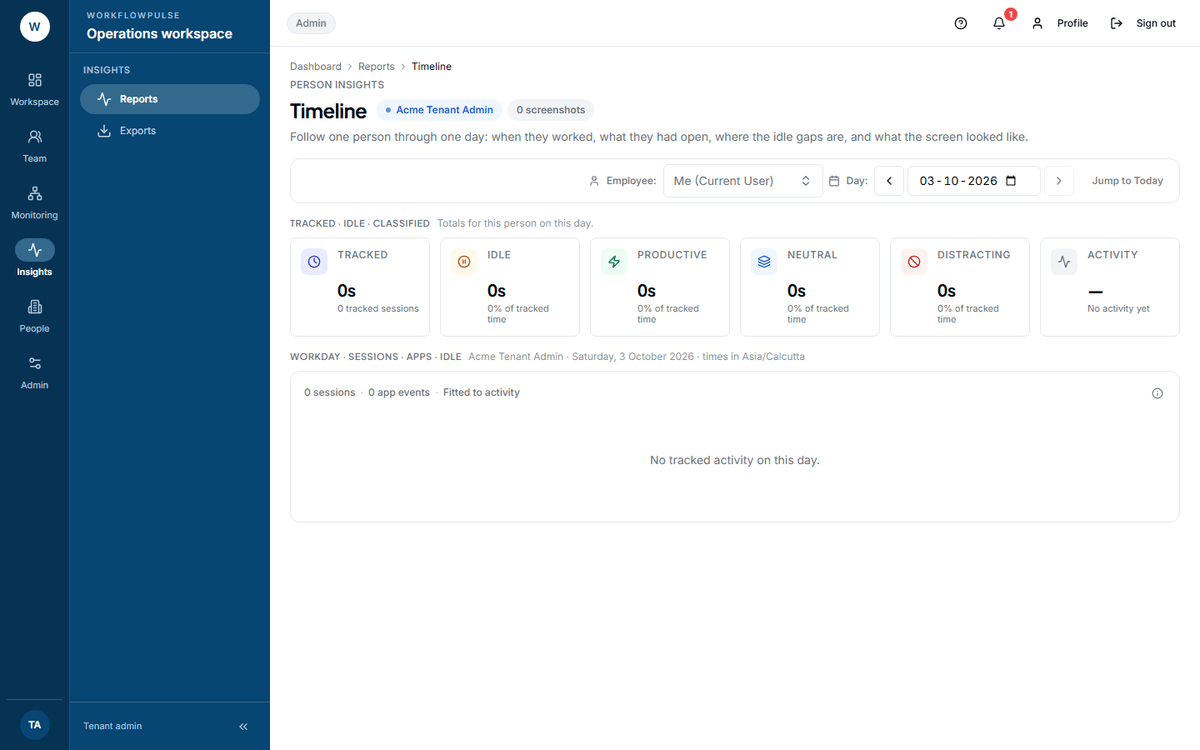
The Timeline report shows one person on one day, and it is the screen with the most detail about you anywhere in the product.
Five lanes, one day. The Apps lane carries the window title on hover. The bottom lane is every screenshot taken that day, clickable to full size.
Under the chart there is an Application Log : every application in order, with its window title, its category, and how long it was in front.
It is your own day. Open any of your timesheets and press View activity timeline .
There is no link to it in your sidebar, but the screen works for you and shows your own data. If a number looks wrong, this is how you check it before you ask anybody.
Report
What it shows about you
Productivity and activity Active time, idle time, productive share, and your key and mouse counts, day by day
App and website use Which applications took your time, and the category split
Timesheet detail Each workday against an eight-hour line, with billable time in task-based workspaces
Wellness Your average workday, after-hours time, weekend time, and any run of ten-hour days
Scorecard A score out of 100 and a rank, built from five parts
Time and motion A dot on a chart comparing your hours against your delivered work, in one of four groups
The last two rank you against the rest of the team. Scorecard gives a position. Time and motion puts you in a named group, and one of the four groups is called “Struggling”.
Neither is shown to you. There is no personal view of either report.
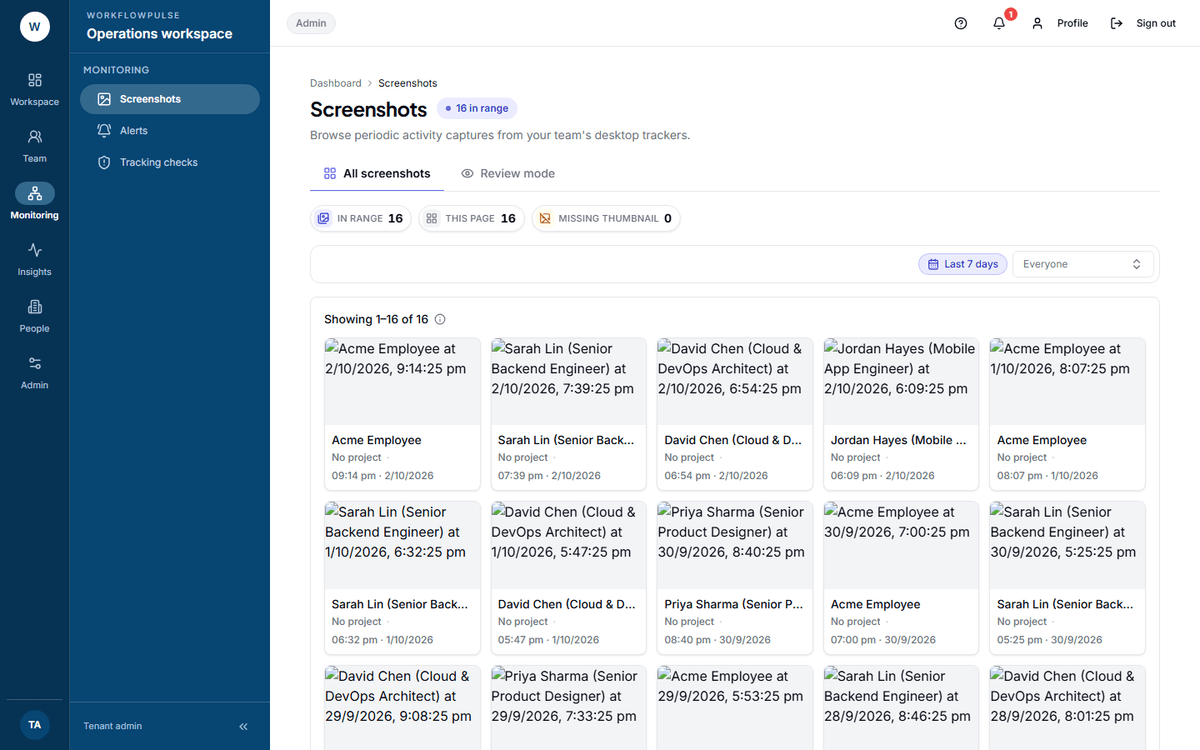
A grid, filtered by person, by project and by date. Opening one shows the capture time, the image size and its status - and nothing about what was on the screen.
Two honest facts about it.
Anyone holding the manager role can list and open every screenshot in the workspace , not only their own team’s. The check in the code returns “allowed” for any manager, with a note that narrowing it is still to do.
The product records when a screenshot is taken , when one is requested , and when one is deleted . It records nothing when one is opened .
There is no access log in this product. That is true for you, and it is equally true for an auditor looking for one.
Role
What they see
Tenant admin Everything a manager sees, across the whole workspace, plus every setting
Auditor Everything too, and can change nothing
Platform admin That your workspace exists and how busy it is. They cannot open your screenshots
Next: What is recorded about you · Reporting a problem
 The live view is text. It is not a view of your screen. Everything on the tile is in the list above - a name, a state, an app, a title, a number.
 Five lanes, one day. The Apps lane carries the window title on hover. The bottom lane is every screenshot taken that day, clickable to full size.
 A grid, filtered by person, by project and by date. Opening one shows the capture time, the image size and its status - and nothing about what was on the screen.