Screenshots
Where are the screenshots, and what controls them?
Browse them on Screenshots (/screenshots). Control them in two places in Settings.
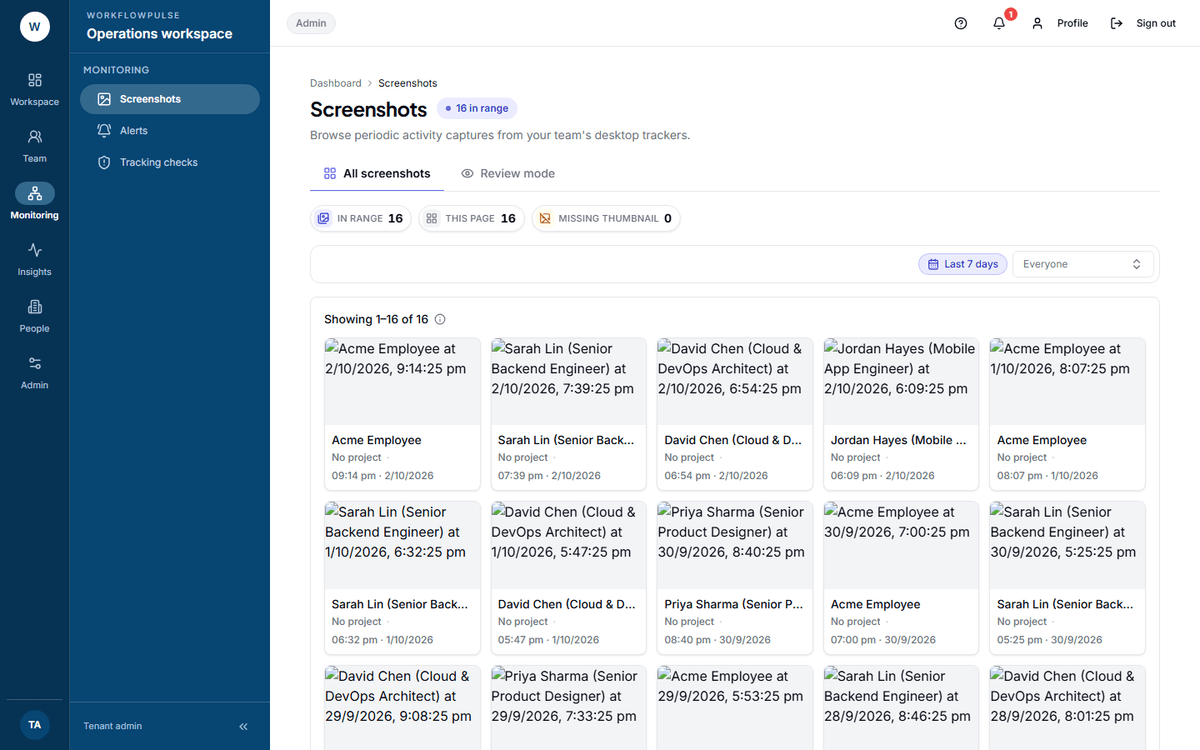 A plain gallery. There is no review state, no flag and no approval behind any tile — what you see is the whole feature.
The two controls
Section titled “The two controls”| Control | Where | Values |
|---|---|---|
| Capture screenshots | Productivity rules → Tracking and privacy | On or off. On by default |
| Screenshot interval (sec) | Settings → Workplace policies | 30 to 3600. Default 300 — every 5 minutes |
That is all of it. There is nothing between on and off: no per-team setting, no schedule, no working-hours window.
Browsing
Section titled “Browsing”The screen is a grid of 60 per page. Each card shows the picture, the person, the project and the capture time. Click one to open it full size.
Three filters: a date range defaulting to the last 7 days, a person, and a project. The project filter only appears in a task-based workspace.
Review mode is the second tab. It shows the same pictures in larger tiles — three columns instead of five. It is a density switch and nothing more: there is no approve, flag or review state behind it, and both tabs render the same cards.
Four limits worth knowing before you switch them on
Section titled “Four limits worth knowing before you switch them on”The on-demand capture
Section titled “The on-demand capture”On Live, a manager or admin can press Screenshot now on a person’s tile. The desktop app takes one at the next opportunity, and the button locks for two minutes.
Deleting
Section titled “Deleting”Retention
Section titled “Retention”Screenshots older than your retention days are deleted permanently by a job that runs nightly at 03:30 UTC — the file, the preview and the database row. The default retention is 90 days.
That job is the only thing that removes a screenshot, which is why the retention number on Workspace settings is the real control over how long these pictures exist.
A position that holds up
Section titled “A position that holds up”- Decide what a screenshot is for in your company. Quality review, client evidence, or dispute resolution are reasons. “In case” is not.
- Pick the longest interval that still serves that reason. Ten minutes usually does; five is twice the storage for the same answer.
- Write down who may open one, and keep that list as short as the roles allow — remembering that every manager can see everybody.
- Tell people before the first capture. Send them What is recorded about you.
- If any screen in your company holds somebody else’s personal data, start with screenshots off and argue your way up.
Next: Screenshots, privacy and how long data is kept · Workspace settings