Timeline
What did one person actually do on one day?
Timeline (/reports/timeline). One person, one day. It is the most detailed screen in the product.
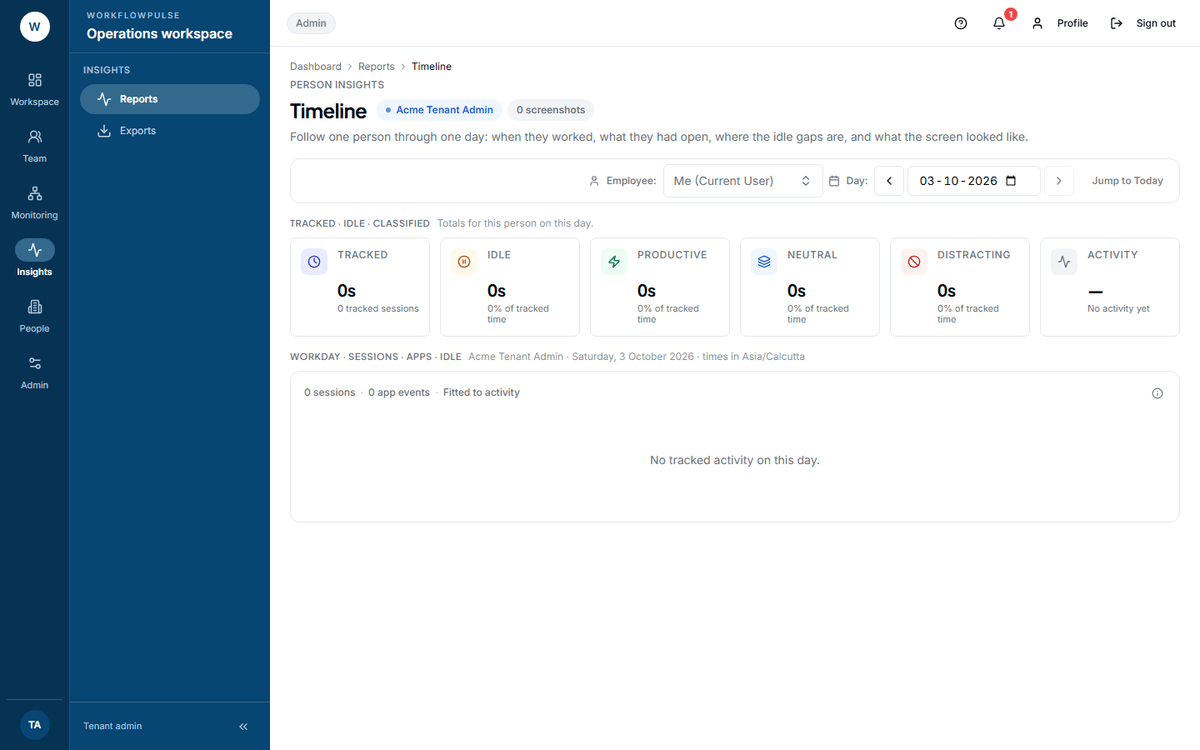 Everything the tracker recorded about one day, on one axis. The legend underneath names each band, so a reader can tell an idle gap from a neutral application without guessing.
What question it answers
Section titled “What question it answers”What one person actually did on one day: when they worked, what they had open, where the idle gaps are, and what the screen looked like.
Every other report aggregates. This one does not.
Where the numbers come from
Section titled “Where the numbers come from”Five streams, drawn on the same axis: tracked sessions, application events, idle events, activity scores, and screenshots. They are joined by person and day, and they are the raw records — nothing on this screen is a rollup.
What is on it
Section titled “What is on it”Six tiles: Tracked, Idle, Productive, Neutral, Distracting and Activity. Where uncategorized time exists, the activity tile names how much.
Then the day itself, drawn across the screen:
- Each tracked session, as a bar
- Each application, coloured by category
- Every idle gap
- Activity bars whose height is the key and mouse figure
- A marker at each screenshot
Below it, when there are screenshots, a strip of them with their capture times. Click one to open it full size.
Below that, the Application Log: every application event in order with Time, Application, Category and Duration, and the window title under each app — or “No window title” where none was recorded.
Choosing who and when
Section titled “Choosing who and when”The Employee picker appears for managers, tenant admins and auditors, and lists active users only. An employee opening this screen gets their own day and cannot choose anybody else — the server enforces that, not the interface.
Move between days with the arrows beside the date, or press Jump to Today. The date box will not go past today.
When to open it
Section titled “When to open it”What it does NOT include
Section titled “What it does NOT include”One day at a time. No week view and no multi-day evidence pack. A two-week investigation is ten visits to this screen.
No export. No button on the screen, and no report type behind it. For the underlying rows take Activity detail (apps and websites) from Exports.
No team filter and no comparison. One person, by design.
It does not record who looked. Opening this screen, and opening a screenshot from it, leave no audit row. See The audit log.
It cannot tell you why. It shows that input stopped at 14:10 and resumed at 15:00. The meeting that filled the gap is not in the product.
What to do with what it shows
Section titled “What to do with what it shows”A long idle gap — look at what sat either side of it before you ask. Same document, same project, usually a meeting.
A disputed timesheet — open the day and read it with the person, not about them.
A day that looks wrong in every way — check the tracker was running for the whole day. A session that started at noon explains more than any of the other bands do.
For an employee
Section titled “For an employee”This is your own evidence too. Open any of your timesheets and press View activity timeline — it opens your day on this screen.
Worth doing before you query a figure, and worth doing before anybody queries one with you.
Next: Activity · What your manager sees