Workspace settings
What can you change about this workspace, and where?
Settings are split across two screens. Settings (/settings) holds the numbers. Productivity rules (/settings/productivity) holds the switches.
Both are tenant admin. Everybody else can open Settings and see it read-only: “Read-only — ask a tenant admin to change tracker policies.”
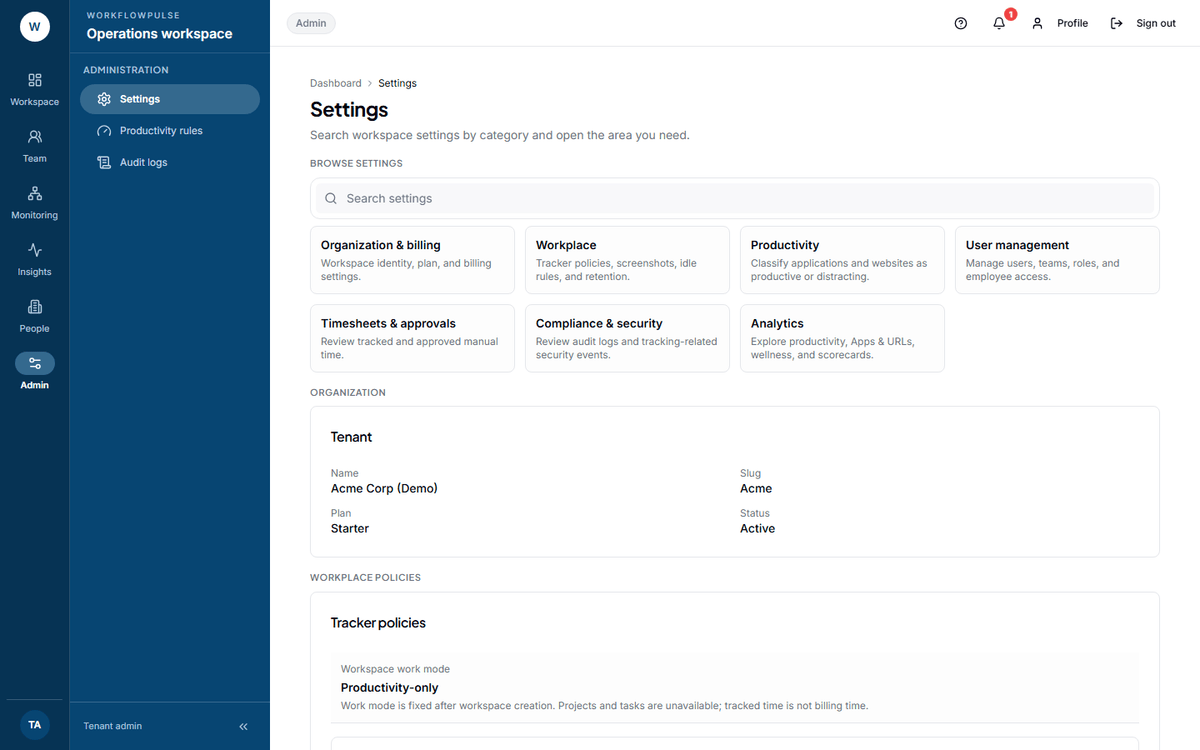 The Browse settings grid at the top is a map, not a form. Three of its seven cards lead off this screen entirely — to Users, Projects and Audit logs.
Settings → Workplace policies
Section titled “Settings → Workplace policies”| Setting | Range | Get it wrong and |
|---|---|---|
| Workspace work mode | Not editable | — |
| Allow manual time | On or off | Off means hours away from the computer are lost entirely |
| Default timezone | An IANA name, e.g. America/Los_Angeles |
The Timeline and the daily charts are drawn on the wrong day |
| Screenshot interval (sec) | 30 to 3600 | Too short costs storage; too long proves nothing |
| Idle threshold (sec) | 30 to 3600 | Too short makes readers look idle; too long hides a real gap |
| Data retention (days) | 1 to 3650 | Too short loses your evidence; too long is data you must defend |
Each field carries its own line of help on the screen. The idle one is the clearest: “No input for this long flags the session as idle.”
Press Save settings. The button refuses to enable until all three numbers are in range and the timezone is filled in.
The one you cannot change
Section titled “The one you cannot change”Productivity rules → Tracking and privacy
Section titled “Productivity rules → Tracking and privacy”Everything about what is collected lives on the other screen, not this one.
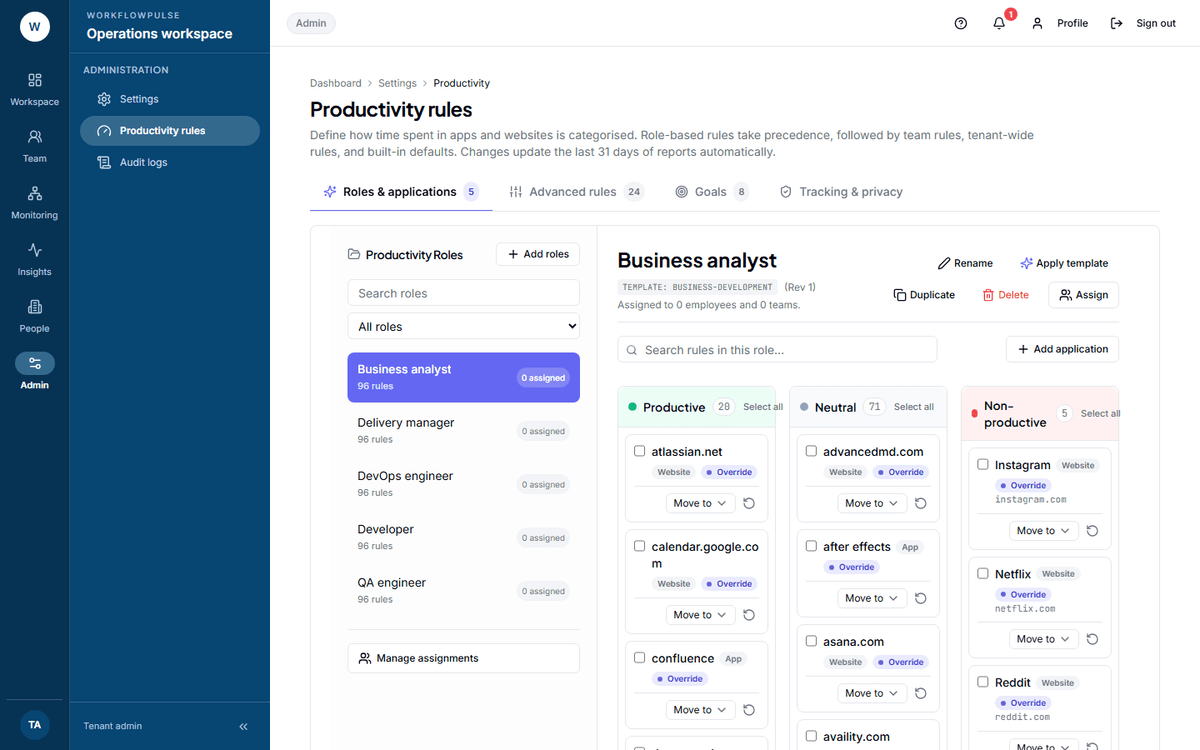 The second settings screen. The tab counts are the quickest health check you have: a Goals count of nought means the Goals met pillar on the Scorecard is scoring nobody.
Tracking mode — Task-start only or Always-on background. Productivity-only workspaces are forced to always-on.
When the tracker detects cheating — Off, Record it and tell the manager, or Also stop tracking. The middle option is the default and the sensible one: stopping somebody’s tracking on a heuristic turns a false positive into lost pay.
Blocked programs — a comma-separated list of things that should not be running, such as a mouse jiggler. The placeholder shows the shape: autohotkey, caffeine, mousejiggler.
Tracker behavior — three switches, all off unless you turn them on: start at boot, let people pause tracking, and allow untasked background time to be billable.
Data collection — six switches. Five are on by default: record app usage, record window titles, capture screenshots, record website domains, send live working status.
Full detail: Screenshots, privacy and how long data is kept.
What this screen does not do
Section titled “What this screen does not do”The Organization card is read-only. Name, slug, plan and status are shown and cannot be edited here. Only a platform admin changes them, on Workspaces.
There are no per-team policies. Every setting is workspace-wide. A team that needs a different screenshot interval cannot have one, and a team in another country cannot have its own timezone.
There is no change history on the screen. Changes are written to the audit log with before and after values — see The audit log.
No setting here is scheduled. A change applies from the moment you save it. There is no “from Monday”.
The order to set them in
Section titled “The order to set them in”-
Timezone, before anybody tracks. It decides what day the Timeline draws.
-
Retention, matched to the longest period anybody could ask you about. This is a promise to your people as much as a storage figure.
-
Screenshots — on or off first, then the interval. The on/off switch is on the Productivity rules screen; the interval is on this one.
-
Idle threshold, set above a normal meeting. 180 seconds flags a three-minute pause as idle.
-
Tracking mode, matched to how work actually arrives in your company.
Then stop. Three of these move every number in the product, and a workspace whose settings change monthly has no comparable history at all.
Next: Screenshots, privacy and how long data is kept · The audit log