Exports and evidence
How do you get a period out of the product, and will the file stand up?
Exports (/exports). Managers, tenant admins and auditors can request one. The screen says it plainly: “Request CSV, Excel (.xlsx) or PDF exports of any report. Files are generated asynchronously and available to download once ready.”
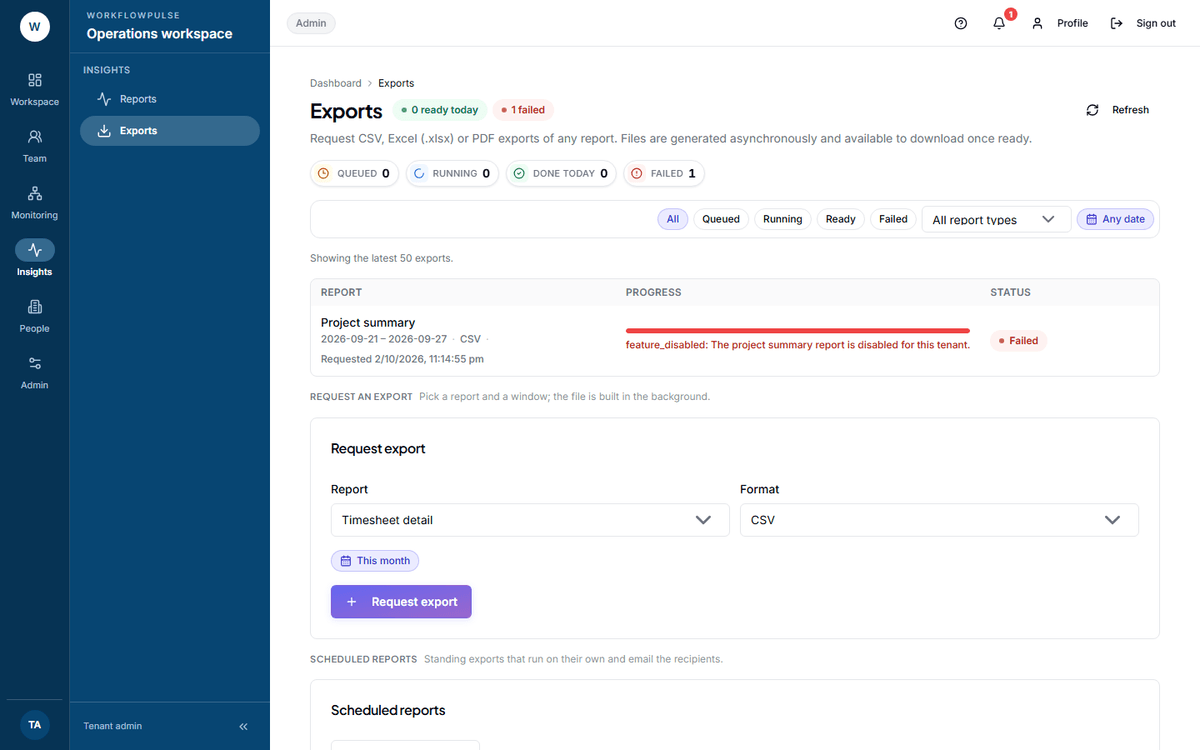 Every export anyone has requested is listed here, newest first. The row is the record: report, period, format, row count and the time it was asked for.
The seven reports
Section titled “The seven reports”| Report | What it contains |
|---|---|
| Monthly client billing | Per client and project, with amounts |
| Resource billing | Per person, with cost |
| Project summary | Per project, hours and cost |
| Active vs idle | Per person, active and idle time |
| Timesheet detail | Per person, per day |
| App usage breakdown | Per application, time and category |
| Activity detail (apps and websites) | The row-level record |
The three billing reports only appear in a workspace that has billing switched on.
Requesting one
Section titled “Requesting one”-
Pick the report, the format and the period in the form below the list.
-
Press Request export. A line confirms it: “Export queued - The CSV is being generated. The row below will turn green when it’s ready to download.”
-
Watch the row. The bar moves through three stages only: Queued, Generating, Done. It is a stage indicator, not a percentage - do not read a number into it.
-
Press the download icon when the status reads Ready.
The three formats, and what each carries
Section titled “The three formats, and what each carries”This is the part that decides whether a file is evidence.
| Format | Header row | Generated-at stamp | Period in the file | Filters printed | Row limit |
|---|---|---|---|---|---|
| CSV | Yes | No | No | No | None |
| Excel (.xlsx) | Yes | No | No | No | None |
| Yes | Yes | Yes, in the title | No | 5,000 |
A PDF opens with two lines and nothing else:
Timesheet detail: 2026-09-01 to 2026-09-30WorkflowPulse · generated 03 Oct 2026 14:05 UTC · 1,284 rowsA PDF over 5,000 rows does not truncate. It fails, and says why: “This report has N rows - too many for PDF. Export it as CSV or Excel instead.”
Making a file that holds up
Section titled “Making a file that holds up”-
Request both a PDF and a CSV of the same report and period. The PDF is the stamped cover; the CSV is the workable data.
-
Write down beside the file: the report, the exact period, the person or scope, who requested it, and the date in your own timezone.
-
Keep the export row on this screen as the second record of the request.
-
If the period could still move, export again at the end and compare. Nothing in the product will tell you a closed period changed.
Scheduled exports
Section titled “Scheduled exports”A tenant admin can set a standing export: pick the report, the format, weekly or monthly, and the recipients. There is a one-press preset, Weekly productivity digest.
Recipients can only be people holding tenant admin, manager or auditor. The product refuses anybody else: “Choose recipients from your own organisation who are admins, managers or auditors.”
An auditor sees the existing schedules and cannot add one: “Only tenant admins can add or remove scheduled reports.”
Three limits worth knowing
Section titled “Three limits worth knowing”Audit logs cannot be exported. They are not in the report list, and the audit screen has no export button. Handing over the change history means copying from the table.
The list is not private. Every export requested in the workspace is listed on this screen, to everybody who can open it - the report, the period, the format and who asked.
Downloading somebody else’s is a role question. A tenant admin or an auditor can download any export in the workspace. Anyone else gets “Cannot access another user’s export.”
Next: What an auditor can see · The reports, and which one to open