Alerts
What does the product tell you about, and when?
Five things. Open Alerts (/alerts) to see which of them are switched on in your workspace.
The screen states the limit in its own words: “Get told when someone hasn’t started, is idle too long, or uses restricted apps. Each alert is sent at most once per person per day.”
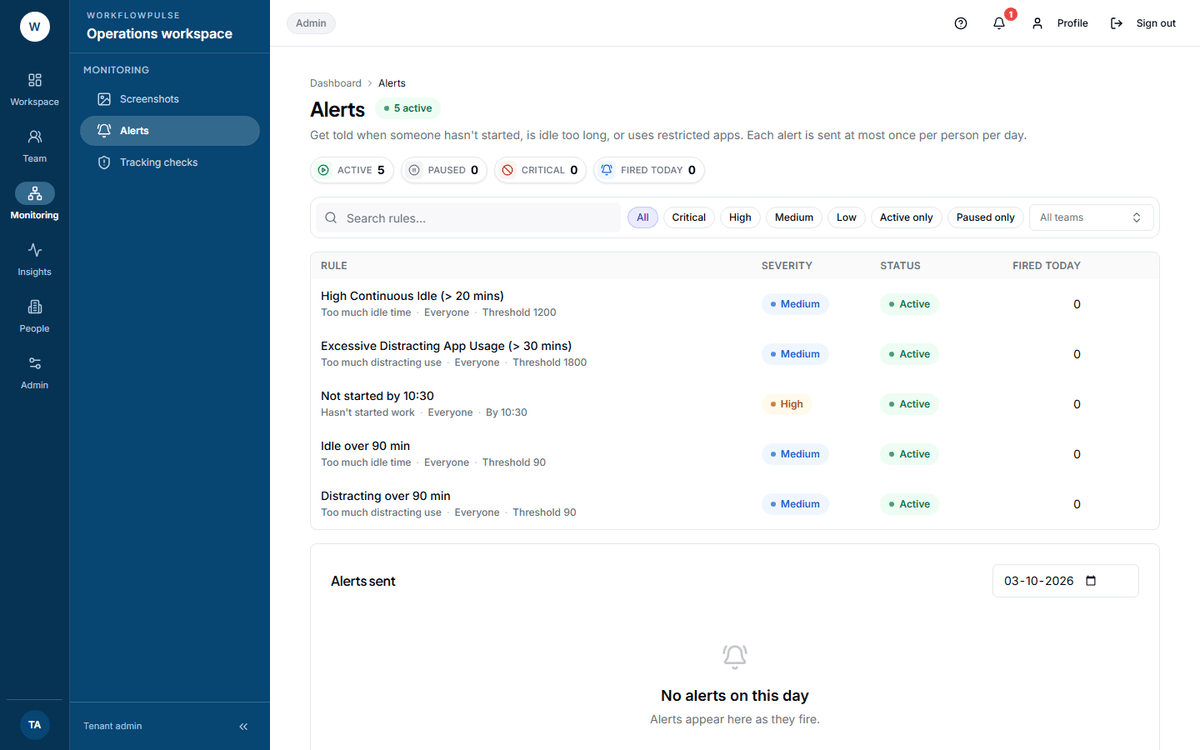 Two different things on one page. The top table is the rules - what the product is watching for. The card underneath is what actually fired, for one day at a time.
The five
Section titled “The five”| Alert | Fires when | The field you set | Default |
|---|---|---|---|
| Hasn’t started work | Nobody has started by a time of day | By (HH:MM) | 10:30 |
| Too much idle time | Idle passes a limit | Idle minutes | 60 |
| Too much distracting use | Distracting time passes a limit | Distracting minutes | 45 |
| Low productivity | Productive share falls under a target | Target % | 50 |
| Uses a restricted app or site | A named app or domain is opened | Minutes before alerting | 1 |
A restricted-use rule also needs the list itself: Apps or websites (comma-separated), for example steam, netflix.com.
Each rule is aimed at one team or at Everyone, and sent to Their manager or All admins. Delivery is one of: in-app and email, in-app only, email only, or Slack and in-app.
Reading the screen
Section titled “Reading the screen”Four figures.
| Tile | What it counts |
|---|---|
| Active | Rules currently watching for this condition |
| Paused | Rules turned off - nothing fires |
| Critical | Active rules flagging a restricted app or site |
| Fired today | Alerts sent on the day chosen below |
Severity is not something anybody sets. It is worked out from the rule type: a restricted app is Critical, a missed start is High, idle and distraction are Medium, low productivity is Low.
Filter the rules by severity, by Active only or Paused only, by team, or by searching the name.
What actually fired
Section titled “What actually fired”The Alerts sent card below the rules shows the events for one day. The day is a date box in the card header, and it cannot be set past today.
Each row names the rule, the person, the time, and the message.
What an alert does not do
Section titled “What an alert does not do”Three things people expect, and the product does not have.
What a manager can do here
Section titled “What a manager can do here”Read the rules, and see what fired. That is all.
Creating, pausing and deleting are tenant admin work. A manager sees a line under the heading: “Viewing only - ask a tenant admin to manage Slack, create alerts, or edit alert rules.” The row buttons are greyed out, and the new-alert form is not shown at all.
See Alerts and goals.
Setting thresholds that get read
Section titled “Setting thresholds that get read”An alert that fires every day stops being read within a week - and then the one that mattered is missed too.
- Set the idle limit above a normal meeting. 60 minutes, not 20.
- Set the start-time alert after the latest normal start, not the earliest.
- Start with one rule. Add a second only after the first has been useful for a fortnight.
- Count the rows in Alerts sent after a week. More than a handful a day means the threshold is wrong, not the team.