Timesheet detail
How did each person’s days actually break down?
Timesheet detail (/reports/timesheet-detail). It is the only report that changes shape with your work mode, so it is described twice below — pick your mode.
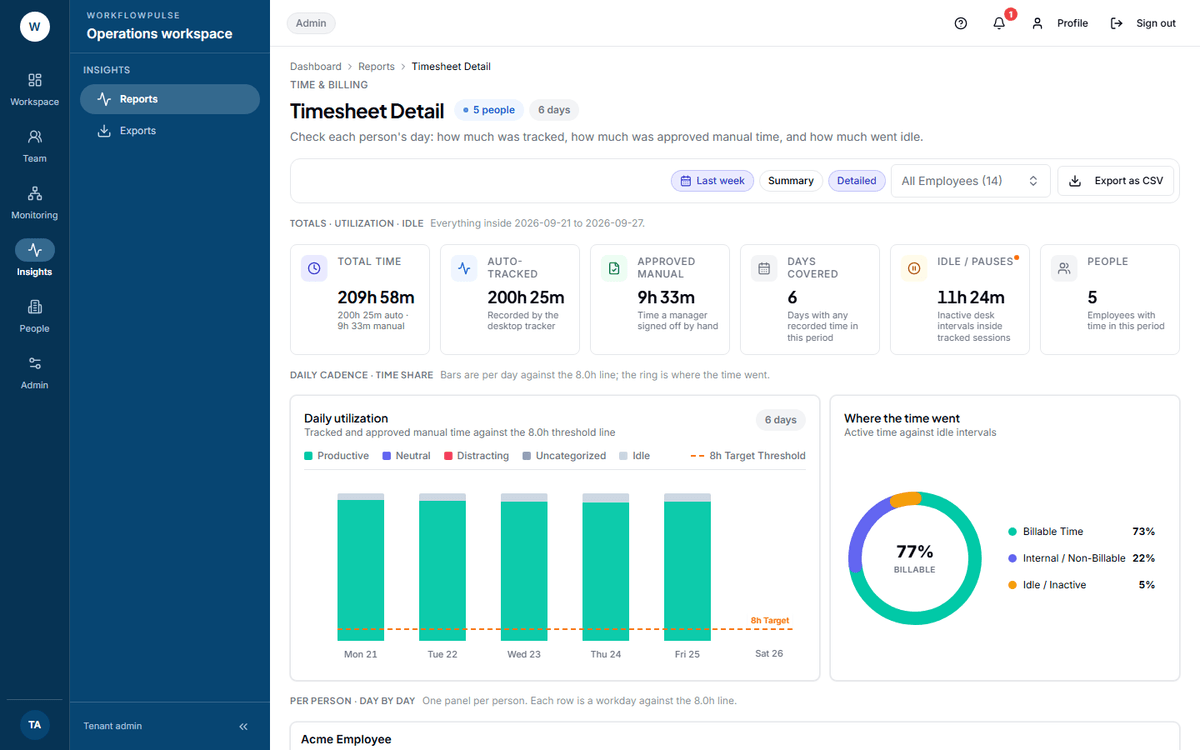 One panel per person, one row per workday, every row measured against the same eight-hour line. It is the closest thing in the product to a paper timesheet.
What question it answers
Section titled “What question it answers”Not “how many hours did the team do” — Activity answers that. This one answers how each person’s day was made up, day by day: how much was tracked, how much of it was booked to real work, and how much was idle.
Where the numbers come from
Section titled “Where the numbers come from”One row per person per day, built from their time logs. The split comes from two fields on each log: its source (the tracker, or a manual entry) and whether it carries a task. Idle minutes come from a separate idle-events table, matched by person and day.
The line under the title reads: “Check each person’s day: tracked time split into task work, background time, billable hours and idle.”
Six tiles: Tracked time, Billable time against an 80% target, Task work, Background, Idle / pauses, People.
The per-person table lists workdays with Tracked, Task, Background, Billable and Idle, each row shown as a percentage of the 8.0h target.
The pair to read is Task against Background. Background time is tracked work that nobody booked to a task. It is real work, and it will never appear on any project report. A large background share means your project numbers are understating delivery — and that Project summary and the billing reports are both short by that amount.
The line changes to: “Check each person’s day: how much was tracked, how much was approved manual time, and how much went idle.”
The first four tiles swap: Total time, Auto-tracked, Approved manual, Days covered. Idle and People stay.
The table becomes Tracked, Manual, Idle. There is no task column and no billable column, because neither exists in this mode.
The pair to read here is Auto-tracked against Approved manual. Manual time is time with no tracker evidence behind it. Somebody typed it and somebody approved it. That is legitimate, and it is also the part worth looking at before anybody bills or pays it.
The charts
Section titled “The charts”Daily utilization — one bar per day against the 8.0h line. Its subtitle changes with your work mode, naming either task and background time or tracked and approved manual time.
Billable vs non-billable (task-based) or Where the time went (productivity-only) — a ring splitting the period’s time.
What it does NOT include
Section titled “What it does NOT include”No team filter. As with every report. The employee picker handles one person at a time.
No project breakdown. This report knows task time from background time; it does not know which task or which project.
Days with no tracked time are absent, not shown as zero. A person’s panel can look full while their week had two blank days in it.
Filters
Section titled “Filters”A date range, defaulting to last week, and an employee picker for managers, admins and auditors. The picker’s empty option counts the people in it — “All Employees (11)”.
For an employee
Section titled “For an employee”This is one of two reports an employee can open about themselves. The server narrows it to your own rows whatever you do.
There is no sidebar link to it, so it has to be reached by its address. Ask your manager for the link, or open any of your own timesheets instead.
What to do with what it shows
Section titled “What to do with what it shows”A person with high background time needs a conversation about starting a task, not about effort. Their hours are being recorded; they are just invisible to the project.
A day that lands well under the 8.0h line is worth opening on Timeline before you ask about it. A short tracked day and a short worked day are not the same thing.
A week with a high manual share (productivity-only) is worth checking against the approvals on Approving added time.
Export
Section titled “Export”Export as CSV sends a timesheet_detail request and carries your employee filter with it. It does not carry the date range into the file as a header — see the export warning on Billing reports.
Next: Project summary · Billing reports