Task based or productivity only
Which way of counting work fits your company?
There are two. The choice changes which screens exist, and you cannot change it after the workspace is created. Decide it before you invite anybody.
One question separates them:
Does a person pick a named piece of work before they start working?
A developer picks a ticket. An auditor picks an engagement. A contact centre agent does not — the call arrives.
Side by side
Section titled “Side by side”| Task based | Productivity only | |
|---|---|---|
| What starts the clock | The person picks a task | Signing in |
| Projects | Yes | Hidden |
| Tasks | Yes | Hidden |
| Manual time (adding an hour you forgot) | On | Off, and a tenant admin can switch it back on |
| Project summary report | Yes | Hidden |
| Resource billing report | Yes | Hidden |
| Monthly client billing report | Yes | Hidden |
| Timesheets | Yes | Yes |
| Can an hour be marked billable? | Yes | No. The server refuses |
| Tracking mode | Task-start only, or always-on | Forced to always-on |
Timesheets stay on in both modes. Hours are still counted, submitted and approved either way.
What you get, in detail
Section titled “What you get, in detail”A person starts a task, the clock runs against it, and the hours belong to a project. Use it when you bill for hours, or when you must answer “how long did this piece of work take”.
It switches on:
- Projects — the thing hours belong to
- Tasks — the named piece of work
- Manual time — adding an hour you forgot to track
- Billing reports — project summary, resource billing and monthly client billing
The cost of it: people have to choose a task before the tracker starts. If the task list is not kept up to date, the tracker stops being used, and you get nothing at all rather than something imperfect.
Four of the five industry packs use this mode: IT services, accounting, and agency all set it, and a blank workspace starts in it.
The clock runs on the person, not on a task. Use it when work arrives on a queue, or when the shift is the unit and there is nothing to pick.
It switches off projects, tasks and the three billing reports. Manual time starts off; a tenant admin can switch it back on afterwards.
The cost of it: no project or client billing at all. Reports that break time down by project stay empty, because nobody ever said what the hour was for.
Two packs use this mode: BPO and contact centre, and healthcare back office. In both, an agent who had to pick a task first would produce no usable hours, because on a queue that step gets skipped every shift.
What the product will not let you do
Section titled “What the product will not let you do”Three rules are enforced in the code, not by policy. Each one is a real error message you will see.
| You try to | What happens |
|---|---|
| Change the work mode after setup | Refused: “Tenant work mode cannot be changed after creation.” |
| Require a task in productivity-only mode | Refused: “Productivity-only tenants cannot require task tracking.” |
| Mark productivity-only time as billable | Refused: “Productivity-only time cannot be billable.” |
Which to pick
Section titled “Which to pick”| If this is true | Pick |
|---|---|
| Clients are billed for named work | Task based |
| Work arrives on a queue and is not chosen | Productivity only |
| The screen holds data you would rather not photograph | Productivity only, and screenshots off |
| You are not sure | Task based. It has more screens; you can ignore the ones you do not need |
The last row is the safe default because the damage is one-sided. A task-based workspace with unused project screens is untidy. A productivity-only workspace that turns out to need billing is a rebuild.
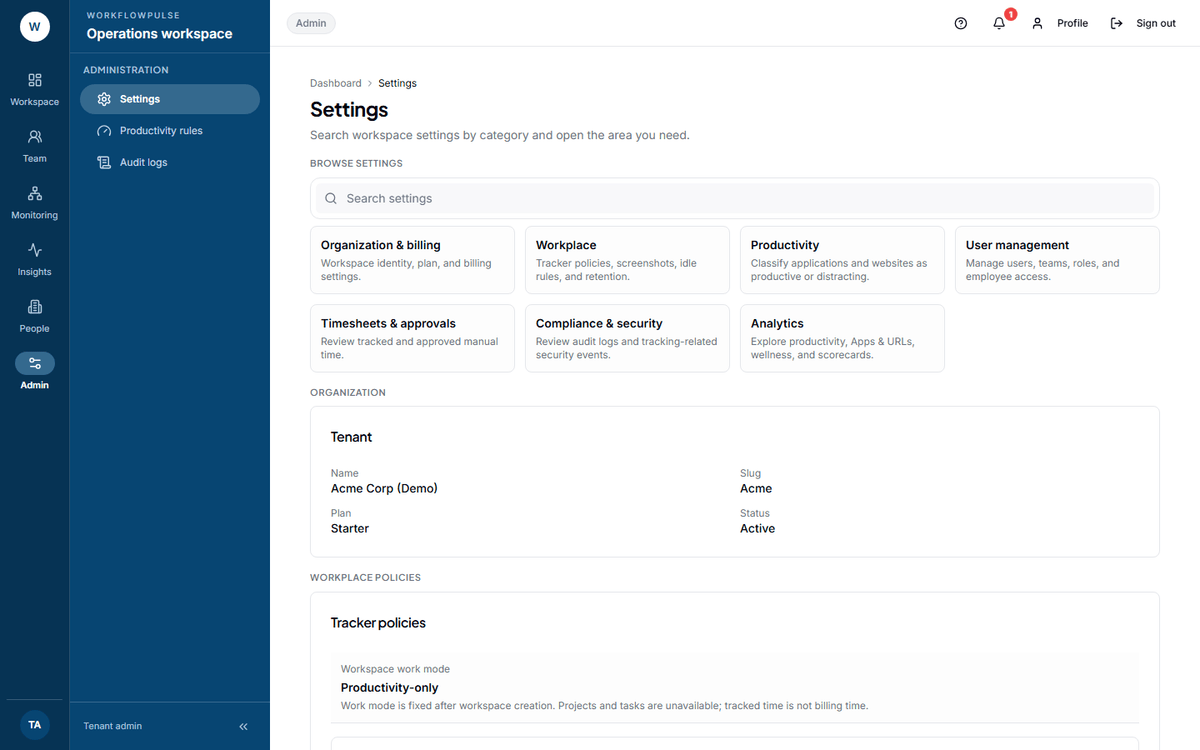 On Settings the work mode is a value, not a field. The line under it reads “Work mode is fixed
after workspace creation.” The three numbers below it are the ones you can still change.
The related setting you can change
Section titled “The related setting you can change”Tracking mode decides whether the tracker runs only once a task starts, or all the time.
- Task-start only — nothing is recorded until somebody starts a task
- Always-on background — the tracker runs for the whole working session
Change it on Productivity rules → Tracking and privacy (/settings/productivity). A
productivity-only workspace is forced to always-on, because there is no task to start.