Workspaces (platform admin)
How do you create and manage a customer workspace?
Tenants (/platform/tenants). Platform super admin only — everybody else gets “Platform super admin role required to manage tenants.”
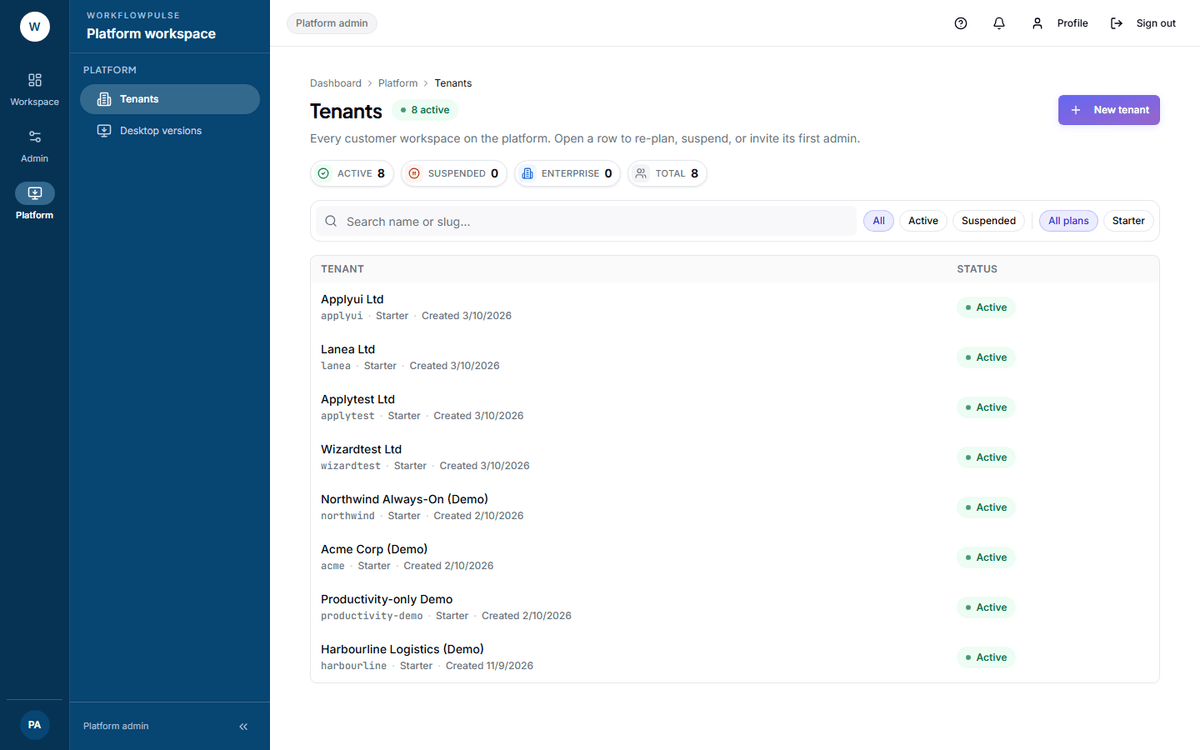 One row per customer. Everything about a workspace is on that row — there is no detail page behind the name.
The four tiles
Section titled “The four tiles”Active, Suspended, Enterprise and Total. Active and suspended are links that filter the list.
Creating one
Section titled “Creating one”Press New tenant.
| Field | Rules |
|---|---|
| Name | 2 to 200 characters |
| Slug | Lowercase letters, digits and hyphens. No leading or trailing hyphen. 2 to 100 characters |
| Plan | Starter, Pro or Enterprise |
| First admin email | Optional. Given one, an admin invitation is sent at creation |
| First admin full name | Locked until an email is entered |
| Workspace work mode | Task-based or Productivity-only |
The slug goes in the URL and in the desktop client sign-in, so the customer will type it. A wrong one is refused with “Lowercase letters, digits and hyphens; can’t start or end with a hyphen.”
The row actions
Section titled “The row actions”| Action | What it does |
|---|---|
| Edit tenant | Rename, or change the plan, inline in the row |
| Invite tenant admin | Sends an admin invitation. The confirmation names when the link expires |
| Suspend tenant | Its users lose access. Asks first |
| Reactivate tenant | Restores access. Asks nothing — it applies at once |
What this screen does not have
Section titled “What this screen does not have”Four things, and knowing them saves you looking.
No seat counts. No licensed-against-used figure anywhere. The screen deliberately counts only what the data can support.
No trial status. A workspace is active or suspended.
No tenant detail page. Everything about a workspace is on its one row.
No impersonation. You cannot sign in as a customer’s admin to see what they see. To diagnose something inside a workspace you need an account in it — which is also why a platform admin has no access to screenshots.
Finding the workspace that has gone quiet
Section titled “Finding the workspace that has gone quiet”That is the question this role exists for, and this screen does not answer it.
Your platform dashboard does: it lists the most active workspaces today with their tracked time and screenshot counts.