Signing in
How do you get in, and what if you cannot?
You need three things: the web address, your work email, and a password.
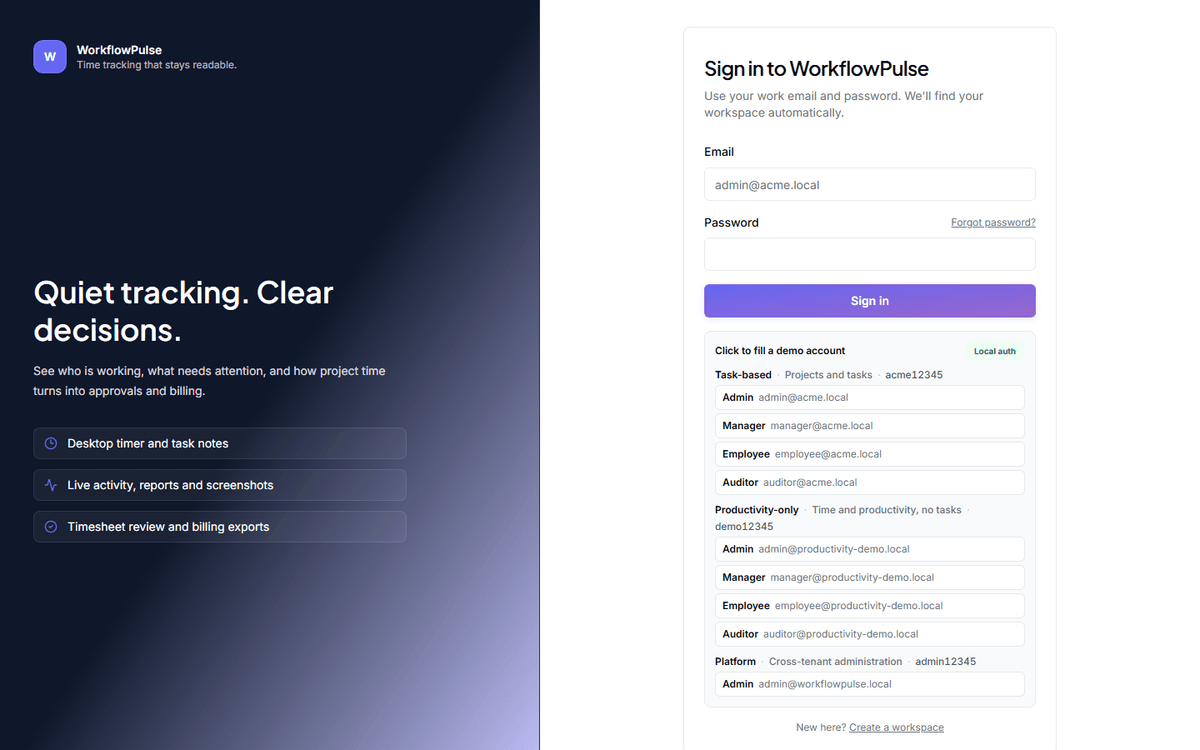 Two fields, and that is all most people ever see. The Workspace box in the middle only appears
if your email belongs to more than one company here.
The first time
Section titled “The first time”- Open the invitation email and follow the link. The page is titled “Accept your invitation”.
- Set a password — at least 8 characters — and confirm it.
- Press “Accept and sign in”. It takes you to the sign-in page, not straight into the app.
- Sign in once with the password you just set. A green note confirms the invitation was accepted.
If you created the workspace yourself, you get a verification email instead. Open the link, then sign in.
After that
Section titled “After that”Enter your email and password and press Sign in.
The Workspace box
Section titled “The Workspace box”Most people never see it. It appears only when your email belongs to more than one workspace. The page then shows a Workspace list and the message “Choose the workspace you want to open.” Pick the right one and sign in again.
If you change the email or the password, the list clears and you choose again.
When it does not work
Section titled “When it does not work”| What you see | What it means | What to do |
|---|---|---|
| “Sign-in failed” | Wrong email or wrong password | Try again. Then use Forgot password? |
| “Could not reach the server. Is the backend running?” | The app cannot reach the server | Check your connection. If it is fine, tell your admin — this is not your account |
| “This link is invalid” | The invitation or reset link is missing its token | Open the link from the email again. If it still fails, ask for a new one |
| “Missing invitation token” | The same, on an invitation | Ask the person who invited you to send a new link |
Resetting your password
Section titled “Resetting your password”Press Forgot password? on the sign-in page. Enter your email. If your account is on a named workspace, enter its short name too; leave it blank only if you are a platform admin.
The page then says “Check your email” and tells you the link expires in 1 hour.
Set the new password and you are signed out everywhere. Sign in again on each device, including the desktop app.
The desktop app
Section titled “The desktop app”Same email, same password, same workspace short name. It is a separate sign-in.