Tracking your time
How do you start and stop tracking?
In the desktop app, not in this web app. The desktop app does the recording. This web app shows the result.
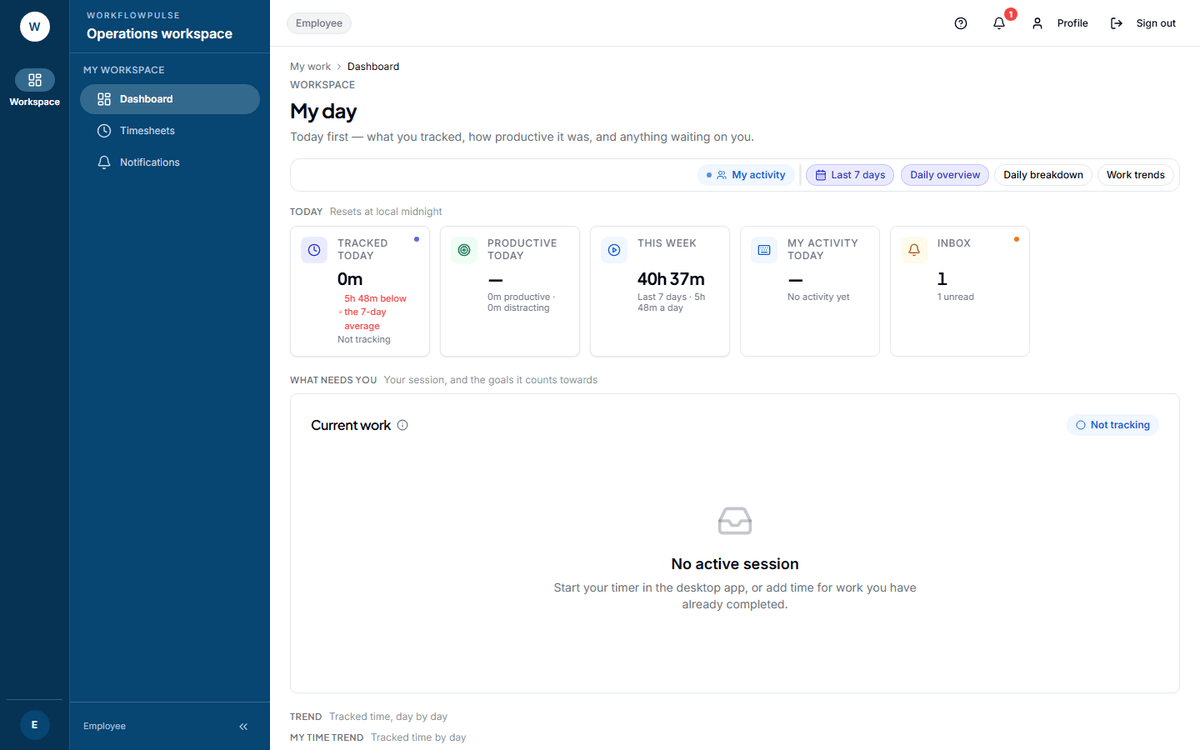 Your dashboard is how you check the tracker from the web. Two things matter here: the Tracked today tile, and the Current work card under it.
Which way does it start?
Section titled “Which way does it start?”Your company picked one of two ways. The setting is on the admin’s Productivity rules screen, so you cannot see it yourself. Ask your admin which one you are on.
Nothing is recorded until you start a task. No task, no record.
This is the default. If nobody told you otherwise, assume this one.
The tracker runs for your whole working session, with or without a task.
Time with no task on it can still be billable, if your admin switched that on.
Starting
Section titled “Starting”-
Open the desktop app.
-
Sign in with the same email and password you use here.
-
On task-start only, pick your task and start it. On always-on, it begins when you sign in.
-
Check this web app. The Current work card should show Tracking, with the line “Desktop tracker is running”.
When no session is open, the card says No active session, and offers you two buttons: Add manual time and View my tasks.
Pausing
Section titled “Pausing”Your company decides whether you can. The setting is “Allow users to pause tracking”, and it is off unless an admin switched it on. When it is off, the desktop app has no pause button.
Idle time
Section titled “Idle time”If there is no keyboard or mouse input for a set period, the session is marked idle.
| Default | 3 minutes |
| Your admin can set | 30 seconds to 1 hour |
| What the setting says | “No input for this long flags the session as idle” |
Checking it worked
Section titled “Checking it worked”-
Open your dashboard and read Tracked today. It refreshes about once a minute.
-
If it has stayed at zero for an hour while you were working, the tracker is not reaching the server.
-
Check the desktop app is still signed in. A password change signs it out.
-
Check your internet connection.
-
If both look fine, tell your manager or your admin.
Tools that fake activity
Section titled “Tools that fake activity”The product looks for programs that fake keyboard and mouse input - a mouse jiggler, for example. Your admin sets a list of blocked programs and what happens when one is found.
The usual setting is “Record it and tell the manager”. A stricter one stops the tracking session.
This is worth knowing before somebody suggests one to you.
If you forgot to start it
Section titled “If you forgot to start it”Add the time by hand. See Adding time you forgot. A manager approves it before it counts.
Next: Your timesheet · What your manager sees